Migrating from CloudTrail Lake to Amazon CloudWatch
Overview
This guide provides a step-by-step approach for migrating from AWS CloudTrail Lake to Amazon CloudWatch as your primary destination for CloudTrail event analysis. It walks through a structured three-phase migration — exporting historical data, enabling new CloudTrail ingestion via telemetry enablement rules, and setting up cross-account/cross-region centralization — so you can unify CloudTrail activity with your other operational and security telemetry in CloudWatch Unified Data Store. The guide also covers cost estimation, query translation from CloudTrail Lake SQL to CloudWatch Logs Insights, centralization pricing optimization, security best practices for your log groups, and building dashboards for near real-time security visibility.
Why Migrate?
Organizations using CloudTrail Lake today face a common challenge: CloudTrail data is isolated from other operational and security telemetry, making incident investigations slow and fragmented across multiple tools and query languages. Amazon CloudWatch Unified Data Store solves this by providing a centralized repository that brings CloudTrail activity alongside VPC Flow Logs, AWS WAF logs, application logs, and third-party security data — enabling correlated analysis through CloudWatch Logs Insights and Apache Iceberg-compatible tools like Amazon Athena and Amazon Redshift.
Key Benefits of Migration
- Unified telemetry: Correlate logs across AWS services (CloudTrail, VPC Flow Logs, WAF, Route 53, EKS, NLB, and more), third-party sources (CrowdStrike, SentinelOne, Okta, Palo Alto Networks, and others), and custom application logs in a single query interface through CloudWatch unified data store.
- Automatic schema discovery: CloudWatch automatically discovers and indexes CloudTrail fields with default facets like
@data_source_namefor dynamic log group discovery. For more information, see Data source discovery and management. - No log group name dependency: Query all CloudTrail data using
SOURCE logGroups() | filterIndex @data_source_name in ["aws_cloudtrail"]regardless of log group naming. - Native enrichment: Use CloudWatch Logs Transformation to add security context, compliance tags, and environment labels at ingestion time without custom Lambda functions.
- Cross-account/cross-region centralization: Consolidate CloudTrail data from all accounts and regions into a single destination for security, compliance, and incident response. For more information, see Cross-account cross-Region log centralization.
- One platform, more value: CloudWatch unified data store goes beyond standalone query services by unifying AWS logs, third-party security sources, and custom application data in a single platform with built-in normalization, and cross-source correlation.
Three-Phase Migration Approach
The migration follows a structured three-phase approach:
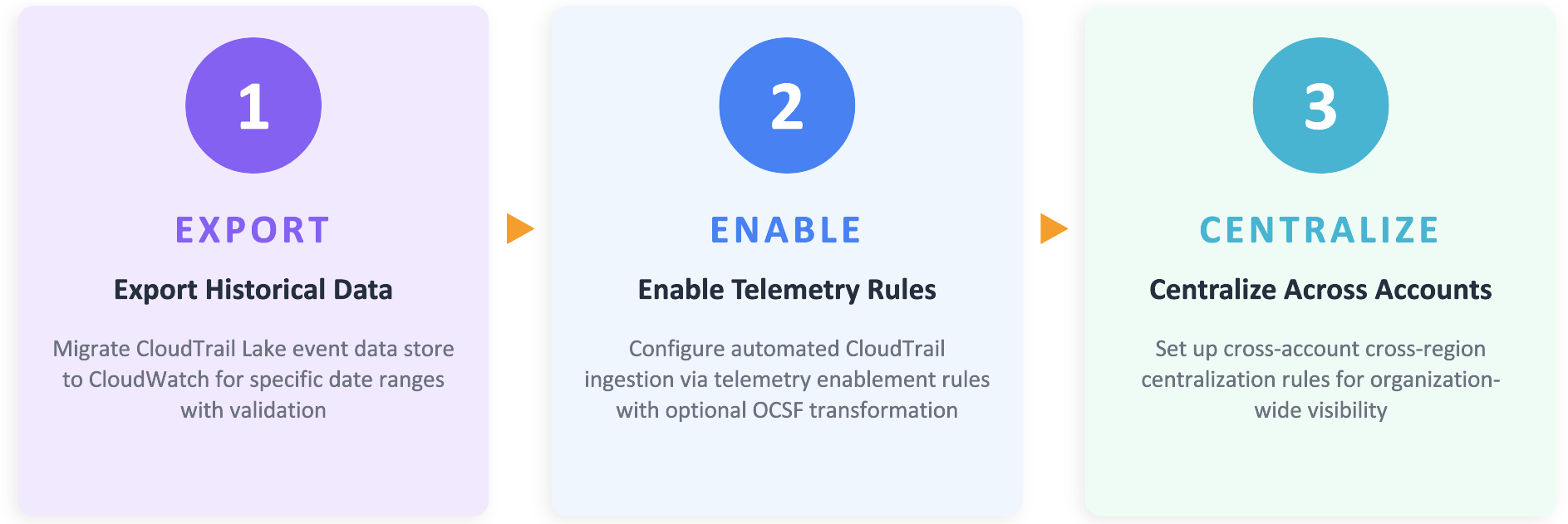
Estimate Migration Costs
Once you migrate from CloudTrail Lake to CloudWatch, new CloudTrail events will be ingested directly into CloudWatch Logs on an ongoing basis. Understanding the cost implications of this migration is important for budget planning and cost optimization.
To estimate your projected monthly CloudWatch Logs cost, review your current CloudTrail Lake usage in AWS Cost Explorer by filtering for the CloudTrail service and grouping by usage type. Refer to Viewing your CloudTrail cost and usage with AWS Cost Explorer to identify the CloudTrail Lake usage types for your event data store (such as ingestion bytes). Cost Explorer displays the ingestion value in GB, which you can use to estimate your CloudWatch Logs ingestion cost using the latest CloudWatch pricing for CloudTrail delivery and CloudWatch Logs ingestion.
Note: This estimate covers ingestion and delivery costs only and doesn't include any additional cost associated with CloudWatch Logs such as storage and queries.
Phase 1 — Export Historical Data from CloudTrail Lake to CloudWatch
Exporting your historical CloudTrail Lake data to CloudWatch ensures continuity of your audit trail and enables unified querying across historical and new events. This phase focuses on moving data from your existing Event Data Stores (EDS) into CloudWatch Logs.
Exporting CloudTrail Lake Data to CloudWatch Execute the Export
-
Navigate to the CloudTrail console.
-
In the left-hand navigation menu, choose Lake.
-
Choose the Event Data Stores.
-
Choose your Event Data Store for CloudTrail events.
-
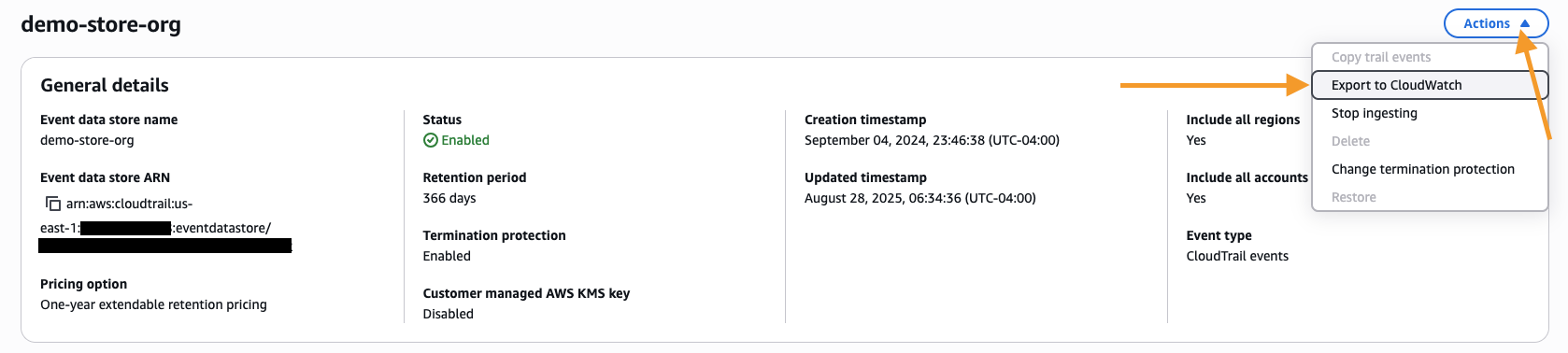
From the Actions dropdown, choose Export to CloudWatch.
-
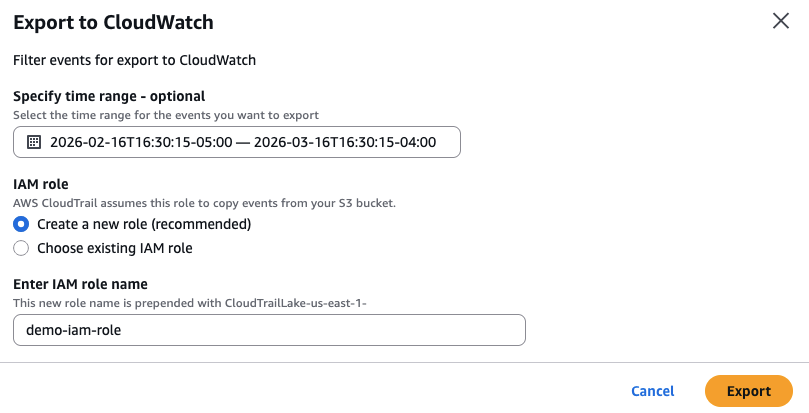
Choose the time range to export data for the event data store.
-
Configure the IAM role using the instructions provided to either create a new IAM role or provide an existing IAM role that CloudTrail will use to access your data for export.
-
Choose Export.
Exported data uses Infrequent Access storage class, requiring CloudWatch Logs Insights to query the log information. Log groups created with Infrequent Access storage do not display export results directly in Log Streams on the console. Additionally, data prior to 2023 cannot be migrated from CloudTrail Lake to Amazon CloudWatch. If you require access to events older than 2023, you can continue to query them directly within CloudTrail Lake, or export the data to an S3 bucket. For more information, see the following documentation on Exporting data from CloudTrail Lake Event Data Store to CloudWatch and for Exporting a subset of AWS CloudTrail Lake events to Amazon S3, see this AWS Blog.
Phase 2 — Enable New CloudTrail Ingestion via Telemetry Enablement Rules
With your historical CloudTrail Lake data now accessible in CloudWatch, the next step is to start ingesting new CloudTrail events directly into CloudWatch Unified Data Store. This step is independent of any existing CloudTrail Trails or CloudTrail Lake event data store. It establishes a new, dedicated path for CloudTrail activity to flow into CloudWatch. Using CloudWatch's telemetry configuration capabilities, you can set up automated ingestion of CloudTrail events directly through CloudWatch. Once enabled, every new CloudTrail event gets delivered alongside your other operational and security telemetry, ready for unified querying, alerting, and analysis.
Creating a Telemetry Enablement Rule for CloudTrail
-
Open the CloudWatch console.
-
In the left navigation pane, click Ingestion.
-
Click the Enable Resource Discovery button.
-
CloudWatch will create necessary service-linked roles automatically.
-
In the Data Sources tab, locate AWS CloudTrail in the list of available services.
-
Choose Configure telemetry next to AWS CloudTrail.
-
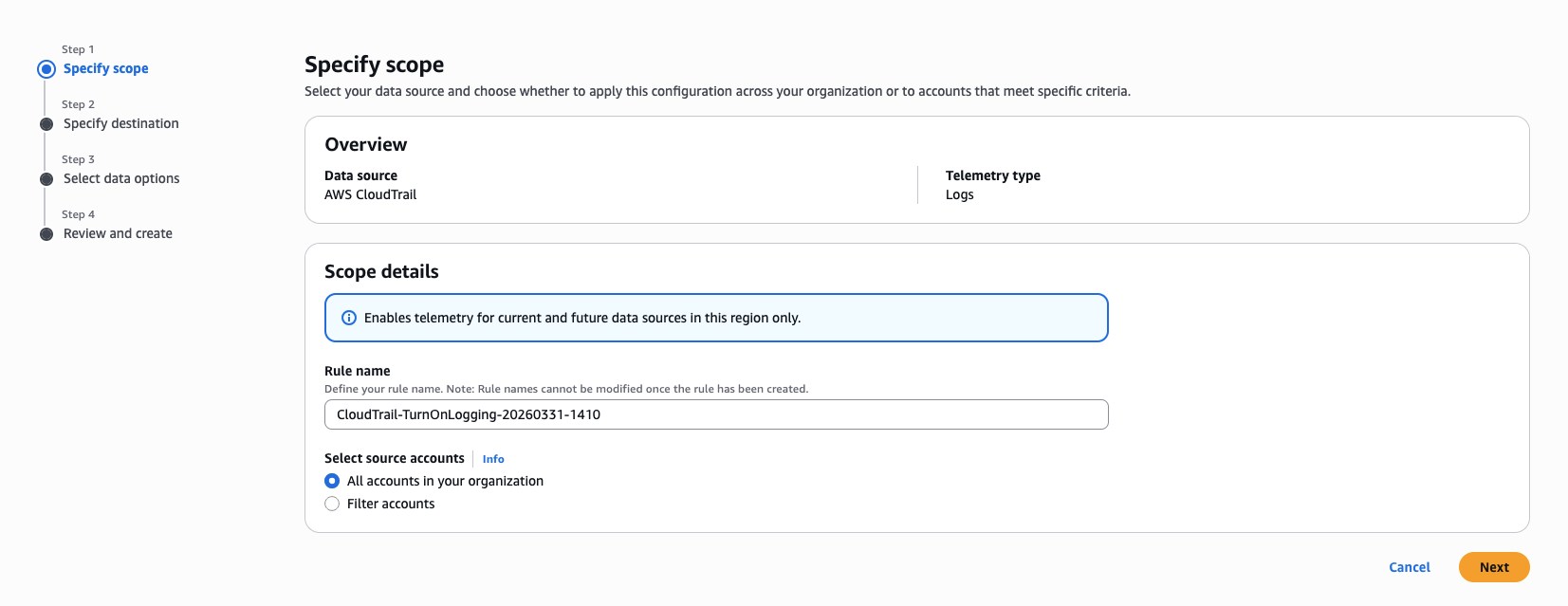
On the Specify Scope page, leave the default Rule name and choose Next. (Note: For organization-level rules, you can configure the source account scope in the selection settings).
-
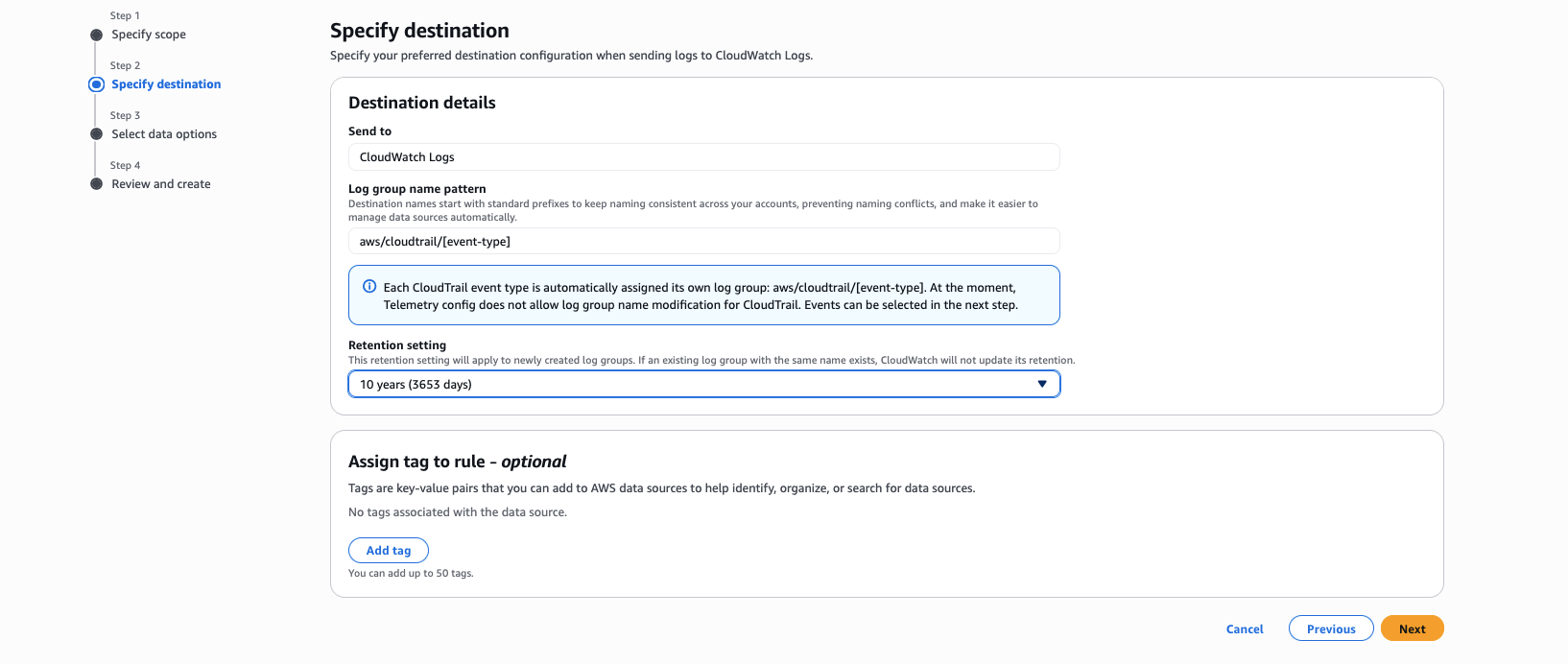
On the Specify Destination page, perform the following steps:
- For Send to, leave the default as CloudWatch Logs.
- For Log group name pattern, leave the default
aws/cloudtrail/[event-type]. - For Retention period, choose the retention period as per your compliance requirements. (Note: The CloudWatch to CloudTrail integration delivers logs directly to member accounts. The retention period you configure here applies to the log groups in each member account. The retention period can be different from the source log group and centralized log group. For additional information, see the section Optimizing log storage costs for CloudWatch Logs centralization)
-
Choose Next.
-
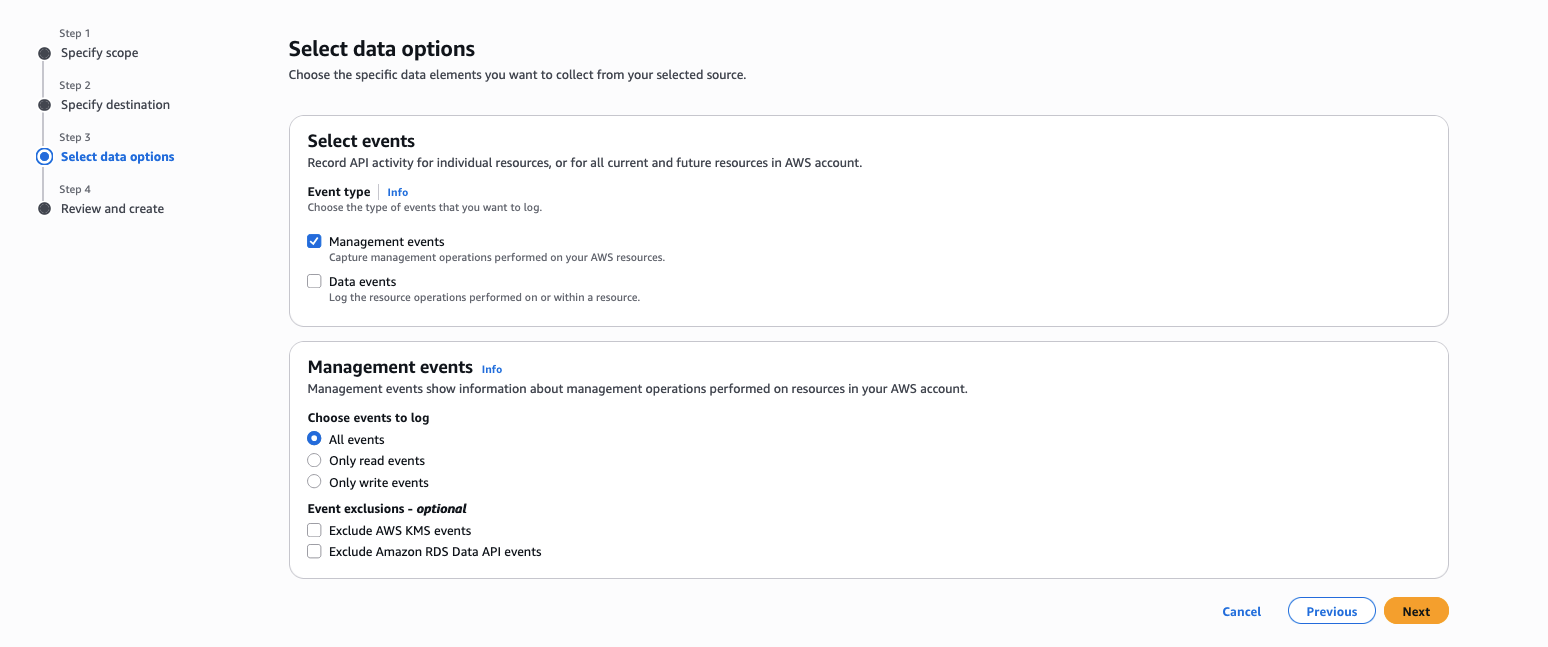
On the Select Data Options page, for Event type, select which events you would like to ingest — either Management events or Data events.
-
Choose Next.
-
On the Review and Create page, review the configuration settings and choose Configure CloudTrail enablement.
Telemetry configuration rules are then created to start the ingestion of CloudTrail events. Log groups are then created with the below naming pattern.
| Event Type | Log Group Name Pattern | Description |
|---|---|---|
| Management Events | aws/cloudtrail/managementevents | All management events |
| Data Events | aws/cloudtrail/dataevents | All data events |
Validate CloudTrail Ingestion
After enabling direct CloudTrail ingestion into CloudWatch, consider keeping both your CloudTrail Lake event data store and your CloudTrail ingestion for CloudWatch running in parallel. Validate your CloudWatch ingestion by running it for at least one day to confirm that all CloudTrail events are being captured as expected. If your validation requires more time, review the potential cost of running both services in parallel and engage your AWS account team for guidance before proceeding. After successful validation, you can then stop ingestion on your CloudTrail Lake event data store.
For more information, see Working with telemetry enablement rules and Simplified enablement of CloudTrail events in CloudWatch.
Phase 3 — Set Up Cross-Account/Cross-Region Centralization
You've migrated your historical CloudTrail Lake data into CloudWatch, enabled CloudTrail ingestion with telemetry enablement rules and now it's time to bring everything together in a centralized account for unified monitoring, analysis, and compliance.
Having CloudTrail data flowing into CloudWatch Unified Data Store in each individual account is a first step, but centralizing all CloudTrail activity into a single destination account provides your security teams, compliance teams, and incident responders with a unified view of all API activity across your entire AWS Organization—a single pane of glass for security monitoring and incident response.
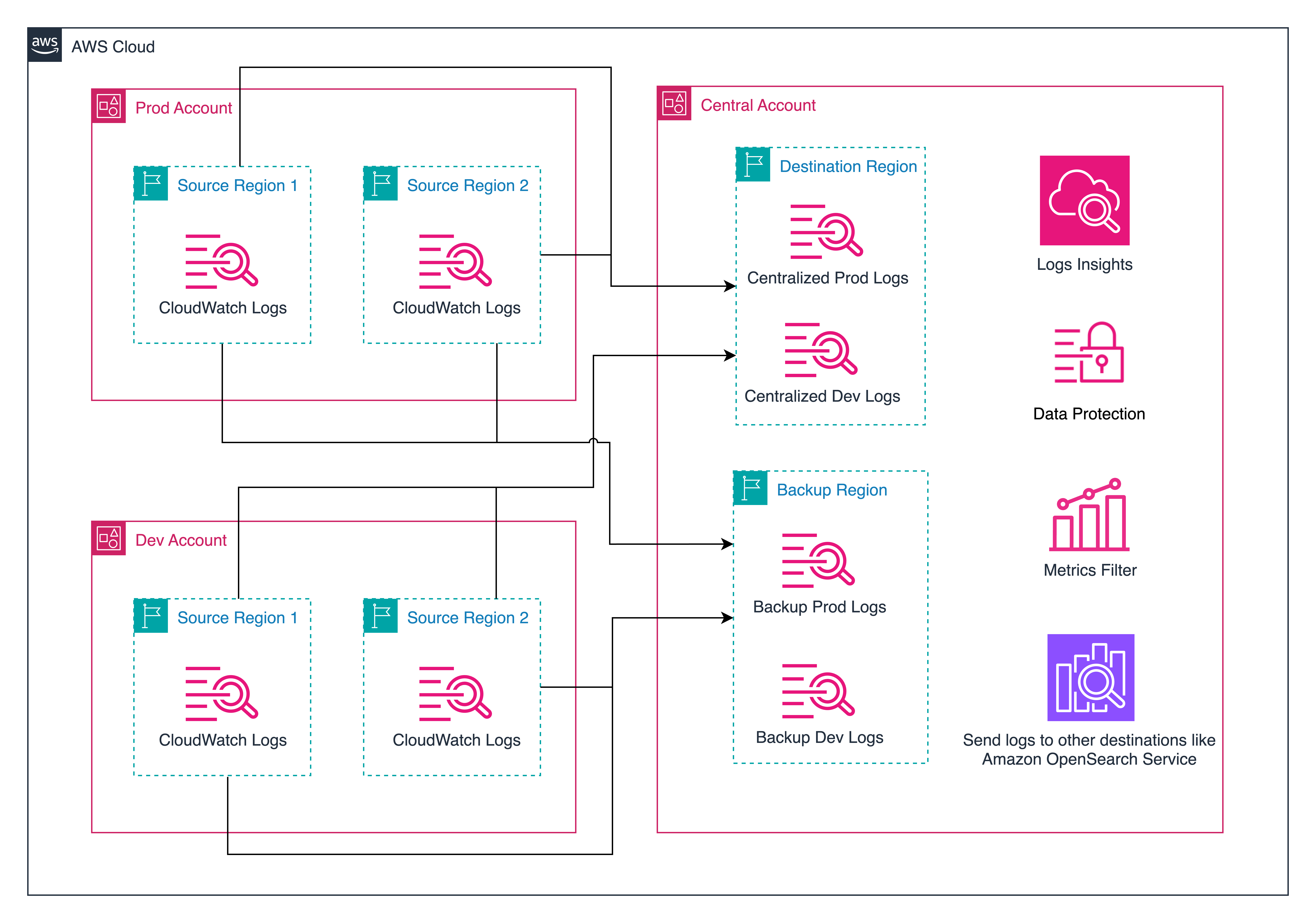
CloudWatch Logs cross-account cross-region centralization integrates with AWS Organizations to collect log data from multiple member accounts into one central location using centralization rules. You define rules that automatically replicate log data from multiple accounts and AWS Regions into your centralized account.
Each member account retains its own copy of the logs for local access and troubleshooting, while your central security and compliance teams receive their own consolidated copy for organization-wide visibility and analysis.
Understanding Centralization Architecture
Prerequisites for Centralization
- AWS Organizations is set up and all source/destination accounts belong to the organization
- Trusted access is enabled for CloudWatch in AWS Organizations
Create the Centralization Rule
-
Navigate to the CloudWatch console in the Management or Delegated Administrator account of the organization.
-
Choose Settings.
-
Navigate to the Organization tab.
-
Choose Configure rule.
-
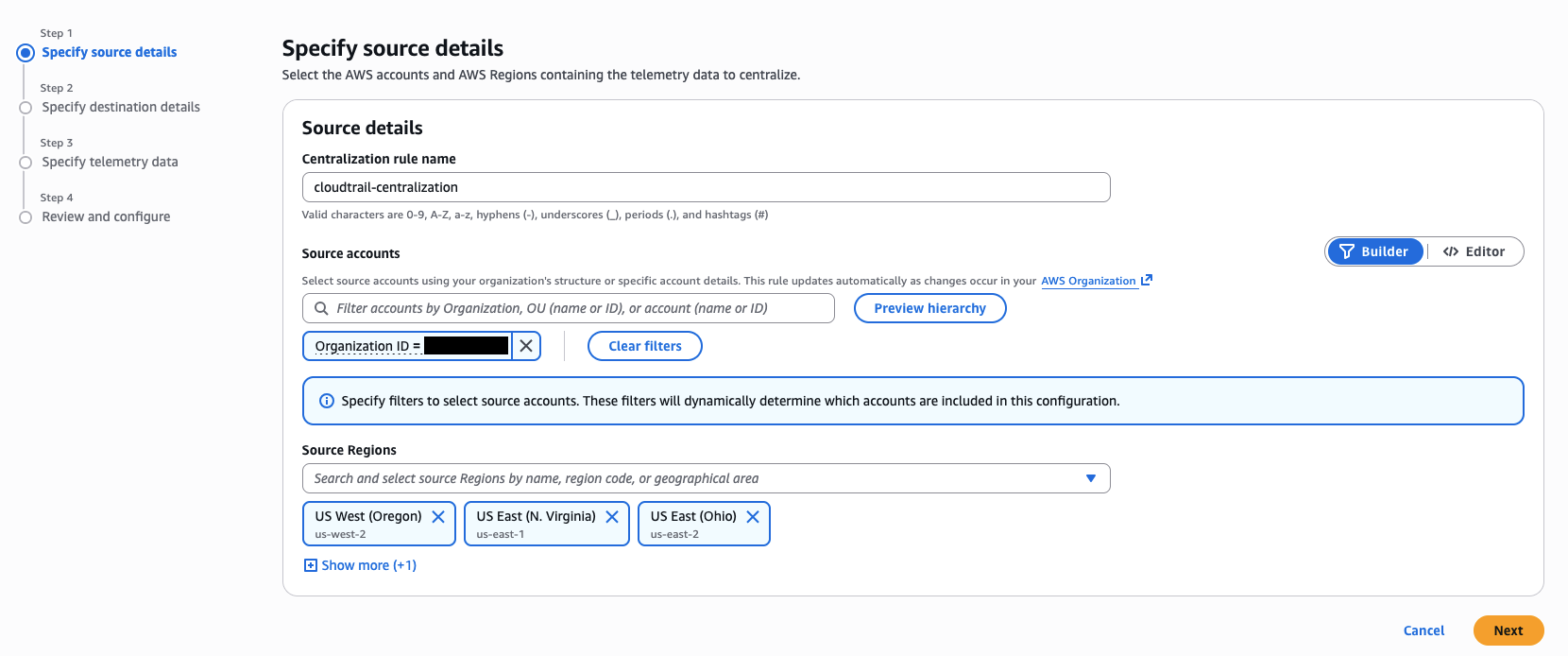
On the Specify Source Details page, specify source details, then choose Next:
- Centralization rule name: Enter a unique name for the centralization rule (e.g.,
cloudtrail-centralization). - Source accounts: Define source selection criteria to pick accounts from which telemetry data will be centralized. You can select by Account ID, Organization Unit (OU) ID, or the entire Organization. You can provide the selection criteria using the Builder (click-based) or Editor (free-form text) mode.
- Supported Keys:
OrganizationId|OrganizationUnitId|AccountId|* - Supported Operators:
=|IN|OR
- Supported Keys:
- Source Regions: Select the Regions from where you want to centralize the logs.
- Centralization rule name: Enter a unique name for the centralization rule (e.g.,
-
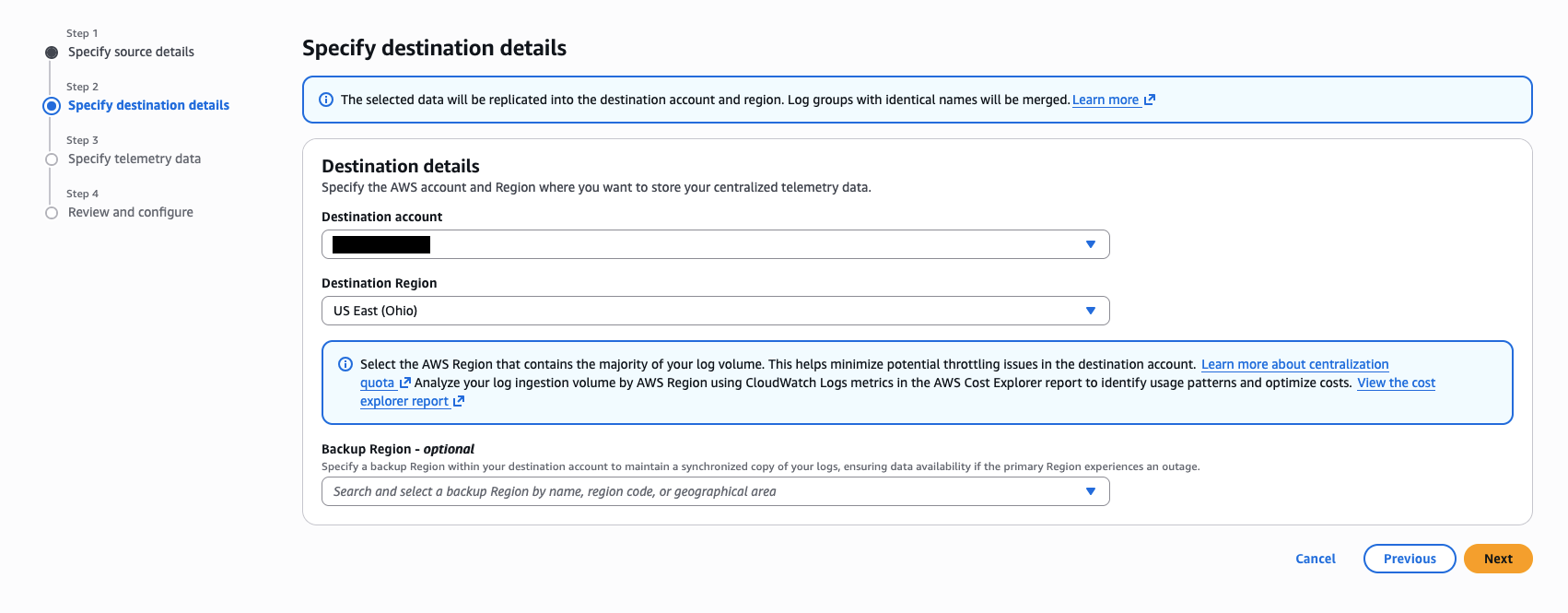
On the Specify Destination page, specify destination details, then choose Next:
- Destination account: Select an account in the organization that acts as the central destination for telemetry data.
- Destination Region: Select a primary Region that stores a copy of the centralized telemetry data.
- Backup Region (optional): Select a backup Region within your destination account to maintain a synchronized copy of your logs, ensuring data availability if the primary Region experiences an outage.
-
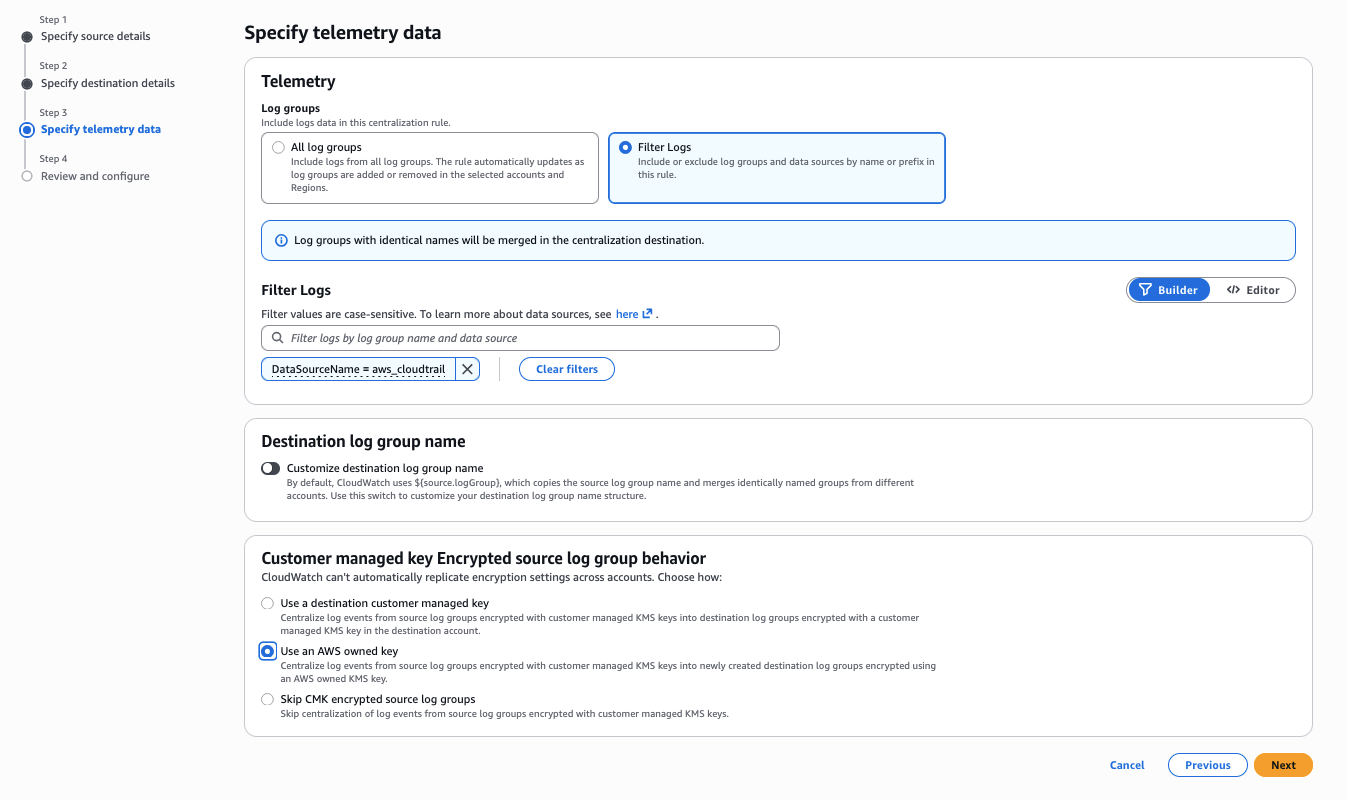
On the Specify Telemetry Data page, specify telemetry data by setting the following fields, then choose Next:
-
Log groups: Choose Filter log groups to centralize only CloudTrail log groups. You can provide the selection criteria using the Builder (click-based) or Editor (free-form text) mode.
- Data source selection criteria: Use this to filter by the data source name and type that CloudWatch Logs automatically assigns to your logs. For CloudTrail, set:
DataSourceName = "aws_cloudtrail". You can also filter byDataSourceTypeto target specific event types such as management or data events.
- Data source selection criteria: Use this to filter by the data source name and type that CloudWatch Logs automatically assigns to your logs. For CloudTrail, set:
-
KMS Encrypted Log Groups: Choose one of the following options to handle KMS-encrypted log groups:
- Centralize source log groups encrypted with customer managed KMS keys using a destination specific customer managed KMS key: Centralizes encrypted log groups from source accounts to the destination using the provided destination KMS key ARN. If you select this option, you must provide the destination encryption key ARN and a backup destination encryption key ARN (needed only if you selected a backup Region in the previous step). The specified KMS key must have permissions for CloudWatch Logs to encrypt.
- Centralize log groups encrypted with customer managed KMS keys in destination account with AWS owned KMS key: Centralizes the KMS-encrypted log groups in source accounts into destination log groups encrypted using an AWS owned KMS key.
- Do not centralize log groups encrypted with customer managed KMS keys: Skips centralization of log events from source log groups encrypted with customer managed KMS keys.
 info
infoAdditional filtering by log group name is also available using the Log group selection criteria. For more information, see Cross-account cross-Region log centralization.
-
-
On the Review and Configure page, review the centralization rule, optionally make any last-minute edits, and choose Create Centralization policy.
After the centralization rule is created and activated, log events will begin consolidating into the central account. Log groups with identical names are merged to streamline log management, while log streams are appended with their originating source account ID and source Region identifiers. Additionally, log events are enriched with new system fields (@aws.account and @aws.region), enabling clear traceability of the log data’s origin.
CloudWatch log centralization feature only processes new log data that arrives in source accounts after you create the centralization rule. Historical log data (logs that existed before rule creation) is not centralized.
Validate Centralization Rules
Check rule health:
- Navigate to CloudWatch → Settings → Organization tab → Manage rules
- Verify the rule status is HEALTHY
Monitor centralization metrics:
- IncomingCopiedBytes: Volume of log data in uncompressed bytes replicated into the destination account (should be non-zero and consistent)
- IncomingCopiedLogEvents: Number of log events replicated into the destination account
- OutgoingCopiedBytes: Volume of log data in uncompressed bytes sent from source accounts to the destination account
- OutgoingCopiedLogEvents: Number of log events sent from source accounts to the destination account
- CentralizationError: Number of errors encountered during replication; should be zero — set up alarms for any errors
- CentralizationThrottled: Number of times centralization processing was throttled; monitor for throttling that could impact replication
Optimizing log storage costs for CloudWatch Logs centralization
CloudWatch Logs centralization offers a cost-efficient pricing structure for managing logs across multiple accounts and Regions. The first copy of centralized logs comes with no additional ingestion charges or cross-region data transfer costs, with customers paying standard CloudWatch storage costs and feature pricing. For any subsequent copies beyond the first centralization, there is an additional per-GB charge (using the backup Region feature also creates an additional copy). For current pricing details, see the CloudWatch pricing page. To help you optimize costs while using CloudWatch Logs centralization, we recommend implementing the following best practices:
-
Implement a Tiered Retention Strategy
You can significantly reduce storage costs by implementing a dual-tier retention policy.
- Configure your source accounts with short-term retention periods (7-30 days) to handle immediate operational needs.
- For your centralized account, set longer retention periods (90+ days) to meet compliance requirements and support historical analysis.
-
Use Selective Centralization
When creating additional copies of your logs, be strategic with your centralization approach:
- Leverage log group filters to centralize only specific applications or services.
- Identify and centralize only the logs that align with your business requirements.
- Avoid centralizing unnecessary log data that doesn't serve a specific use case.
-
Backup Strategy
Consider these factors when planning your backup strategy:
- Be mindful that backup copies are treated as additional copies and incur an additional per-GB charge. See the CloudWatch pricing page for current rates.
- Enable backup centralization only when you have a specific requirement for dedicated backup in a central account.
- Consider utilizing your source accounts as backup copies to eliminate additional charges.
By implementing these optimization strategies, you can maintain effective log management while controlling your costs.
Stop CloudTrail Lake Ingestion
After enabling CloudTrail event ingestion into CloudWatch and confirming that events are flowing correctly for at least 24 hours, it's time to disable ingestion to your CloudTrail Lake event data store. This prevents duplicate ingestion charges across both services. Your historical data in CloudTrail Lake remains fully accessible for querying even after you stop new ingestion.
- Navigate to the CloudTrail console → Lake → Event data stores
- Select the Event Data Store
- Choose Stop ingestion (this preserves existing data for querying)
- Confirm the action
Stopping ingestion does NOT delete existing data. You can still query historical data in CloudTrail Lake until the retention period expires or you delete the EDS.
Security Visibility Dashboard using CloudWatch Unified Data Store
With centralized CloudTrail data in CloudWatch, you can deploy a pre-built CloudWatch Dashboard that leverages CloudWatch Unified Data Store default facets like @data_source_name to dynamically discover and query your CloudTrail activity across all log groups — without any dependency on log group names. The dashboard provides near real-time visibility into API activity patterns, security events, and compliance posture, placing CloudTrail and VPC Flow Log data side by side for cross-service correlation during incident investigations.
For a step-by-step deployment guide using AWS CloudFormation, including dashboard widget descriptions and query explanations, see Security Visibility Dashboard using CloudWatch Unified Data Store.
Query Translation Guide — CloudTrail Lake SQL to CloudWatch Logs Insights
One of the most critical aspects of migration is translating your existing CloudTrail Lake SQL queries to CloudWatch Logs Insights equivalents. CloudWatch Logs Insights supports three query languages: Logs Insights QL, OpenSearch PPL, and OpenSearch SQL — giving you flexibility in how you query your data.
CloudWatch Logs Insights supports natural language query generation. You can describe what you're looking for in plain English, and the AI-assisted capability generates a query and provides a line-by-line explanation. This is especially helpful when translating complex CloudTrail Lake SQL queries.
Security Best Practices for the Migrated Environment
Securing your CloudTrail data in CloudWatch requires a comprehensive, multi-layered approach combining IAM policies, encryption, deletion protection, resource-based policies, and continuous monitoring. Proper security controls ensure your log data remains an asset for audit and compliance rather than a vulnerability, covering least-privilege access, data classification-driven log group design, and protection against accidental or malicious deletion of critical audit trails.
For detailed guidance on implementing these controls, including log group hierarchy design, granular permission management, and encryption best practices, see Security Best Practices for CloudWatch Logs.