EC2 Instances
A page for monitoring the real-time status of EC2 instances and viewing detailed information.
:::info How this is served in v2
This screen isn't a dedicated page — it's served through v2's shared inventory view (/inventory/ec2, under the "Compute" group in the sidebar). The content below reflects the actual v2 inventory view configuration (HIGHLIGHTS.ec2/INVENTORY_TYPES.ec2 in web/lib/inventory-types.ts), not v1's dedicated EC2 page.
:::
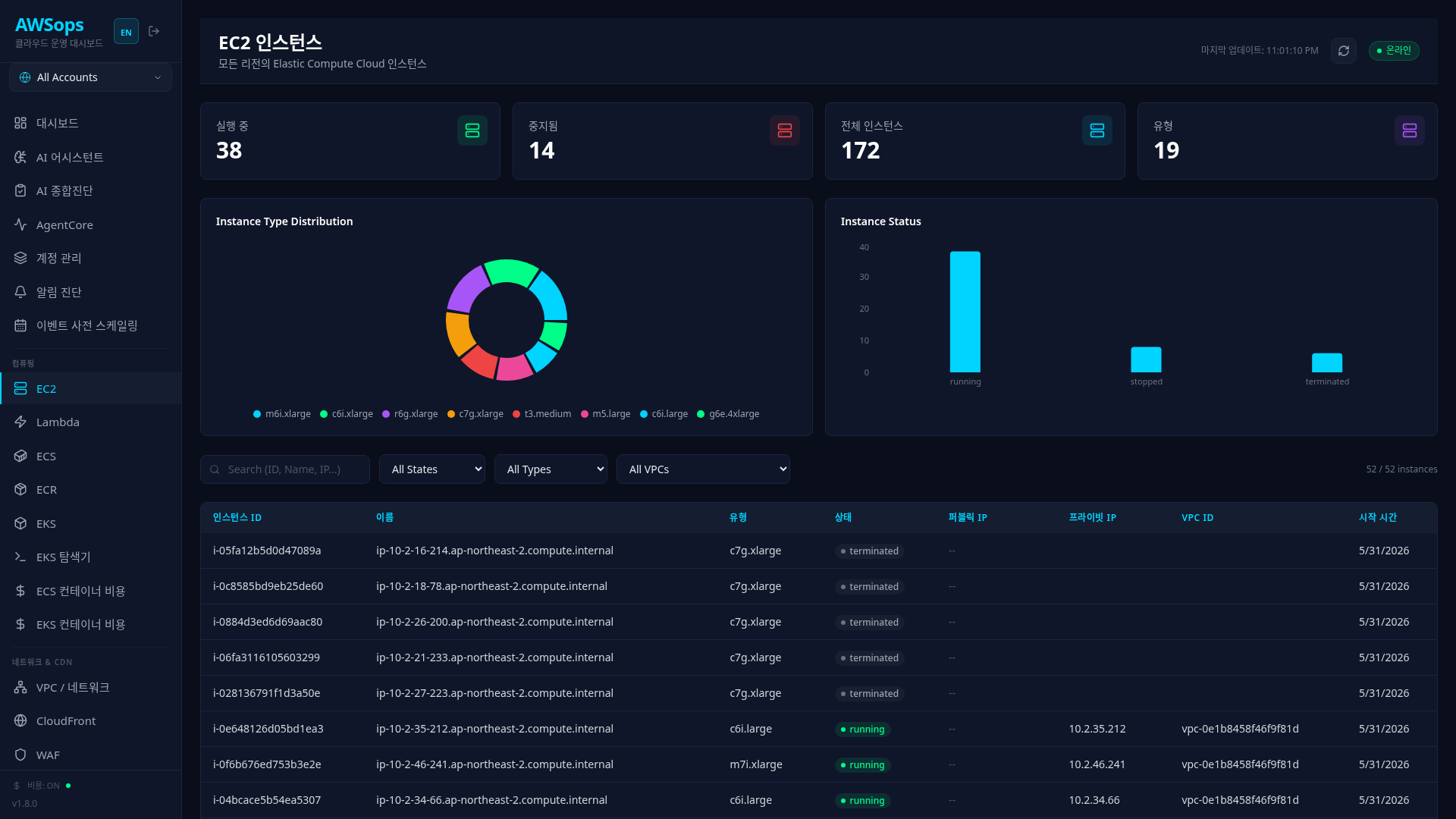
Key Features
Highlight Cards
Five highlight cards at the top of the page display key metrics:
- Running: Instances where
instance_stateis running - Stopped: Instances where
instance_stateis stopped - Public IP: Instances with a public IP assigned
- Instance types: Distinct count of
instance_typein use - Running total vCPUs: sum of actual vCPUs across running instances (
cpu_optionscores × threads — the per-instance actual value, not the type default)
Visualization Charts
- Distribution donuts by instance type (
instance_type) and instance state (instance_state) - Top-N bar chart ranking instances by memory (MiB)
Instance List Table
Displays all EC2 instances in a table format:
- Name, Type, State, Pricing, Private/Public IP, Subnet, VPC, Launch Time
- Color-coded status badge based on state (running/stopped, etc.)
Filters and Search
- Search box: Text search across all fields including ID, Name, IP
- State filter: Filter by status such as running, stopped
- Type filter: Filter by instance type such as t3.micro, m5.large
- VPC filter: Filter by VPC ID
- Clear all: Reset all filters
Detail Panel
Click an instance row in the table to open the detail panel on the right:
- Instance section: Instance ID, AMI, Architecture, Platform, Key Pair, IAM Role, etc.
- Compute section: vCPUs, Cores, Threads/Core, Memory, Network Performance
- Network section: VPC, Subnet, AZ, Private/Public IP, DNS, Network Interfaces
- Security Groups section: List of attached security groups
- Storage section: Root Device, Block Device Mappings
- Tags section: List of tags configured on the instance
How to Use
- Click Compute > EC2 in the sidebar
- Review the overall status from the highlight cards at the top
- Use filters to find specific instances
- Click an instance in the table to view detailed information
- Use the refresh button to load the latest data
Tips
:::tip Quick Search You can quickly find instances by entering just part of an IP address in the search box. :::
:::tip Filter Combinations Use multiple filters simultaneously for more precise instance searches. For example, view only "t3.large instances in running state". :::
:::info AI Analysis You can analyze with the AI Assistant using queries like "Show me EC2 instance list", "How many running instances are there?", etc. :::
Related Pages
- VPC - Check network configuration
- EBS - Check attached volumes
- Monitoring - Check CPU/memory metrics