EKS Container Cost
A page for analyzing EKS Pod costs. It supports two data sources: OpenCost (default) or Request-based estimation (fallback).
:::info Account, region, and transfer scope
Cost lists query connected clusters in the selected account/region scope and keep same-named clusters distinct. Partial-collection, limit, or failure notices indicate incomplete results; narrow the scope and retry. The separate NFM pod-transfer view supports only the host account in the deployment region and reports member/other-region scopes as unsupported. This restriction is separate from the Network cost supplied by OpenCost. A View-based member role separately needs a services/proxy GET binding limited to service opencost:9003 in namespace opencost to read the OpenCost API. A permission failure does not prove it is uninstalled.
:::
Key Features
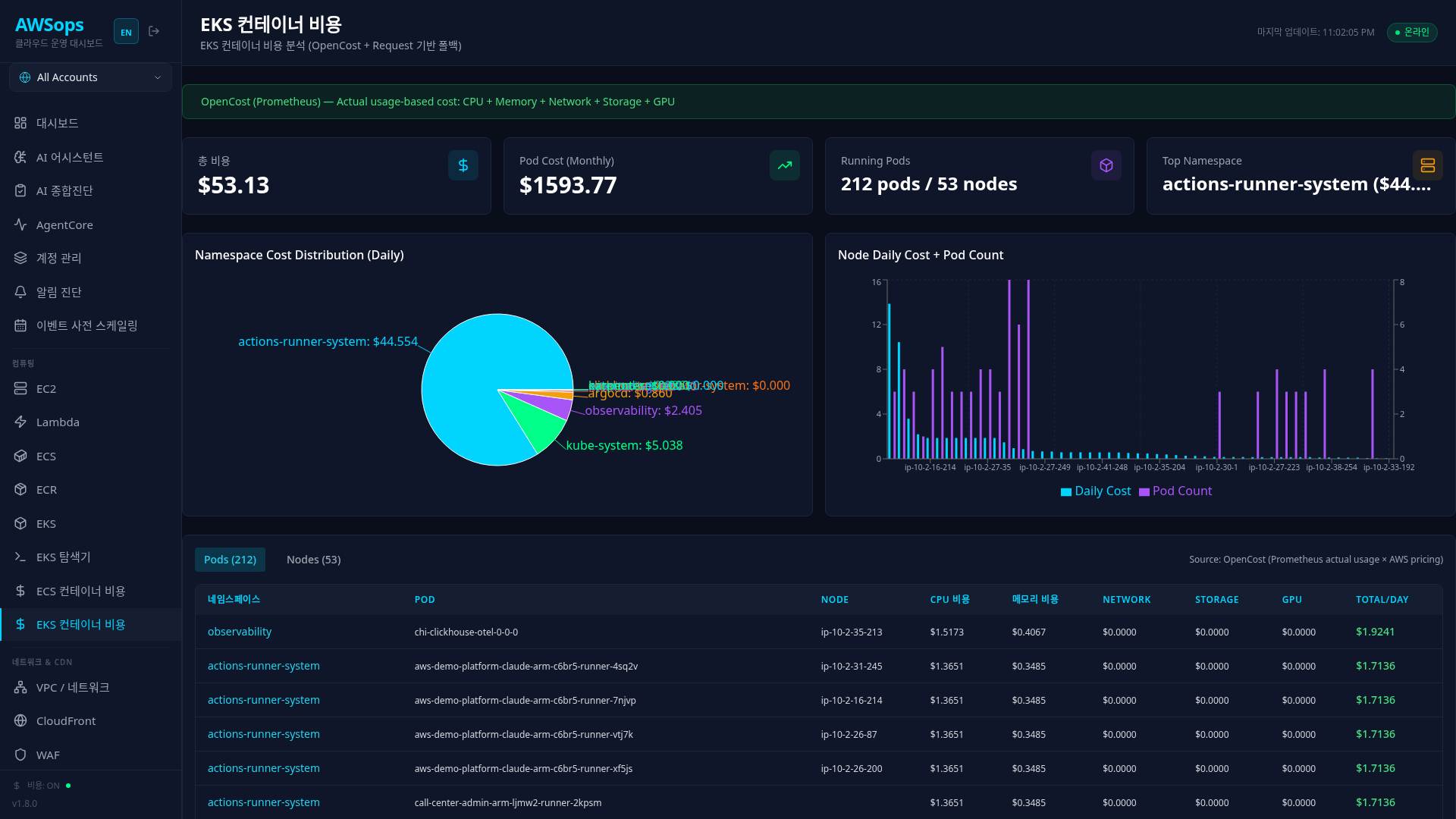
Data Source Indicator
The current data source is displayed at the top of the page:
- Green: OpenCost (Prometheus) - Actual usage based, CPU + Memory + Network + Storage + GPU
- Yellow: Request-based estimation - CPU + Memory only (OpenCost installation recommended)
Stats Cards
- Pod Cost (Daily): Total daily Pod cost (cyan)
- Pod Cost (Monthly): Estimated monthly cost (green)
- Running Pods: Running Pod count / Node count (purple)
- Top Namespace: Highest cost namespace (orange)
Namespace Cost Distribution Chart
Pie chart showing daily cost distribution by namespace
Node Daily Cost + Pod Count Chart
Shows daily cost and Pod count per node. In v2 this renders as grouped bars with per-series scaling (a cost track + a pod-count track, real values/units on the labels) instead of a dual axis — above the node cost table on /eks/cost, top 15 by cost. A cluster with incomplete pod→node attribution shows '—' pod values on its nodes (a shown count could undercount, so it is never a confident number).
Pods Tab
| Column | Description |
|---|---|
| Namespace | Namespace |
| Pod | Pod name |
| Node | Node name |
| CPU | CPU cost |
| Memory | Memory cost |
| Network* | Network cost (OpenCost only) |
| Storage* | Storage cost (OpenCost only) |
| GPU* | GPU cost (OpenCost only) |
| Total/Day | Total daily cost |
*Displayed only in OpenCost mode
Nodes Tab
| Column | Description |
|---|---|
| Node | Node name |
| Instance Type | EC2 instance type |
| Hourly Rate | Hourly cost |
| Daily Cost | Daily cost |
| Pods | Pod count |
Two Cost Calculation Methods
Method A: Request-based (Default)
Distributes node cost by Pod resource request ratio:
CPU Ratio = Pod CPU Request / Node Allocatable CPU
Memory Ratio = Pod Memory Request / Node Allocatable Memory
Pod Daily Cost = (CPU Ratio x 0.5 + Memory Ratio x 0.5) x Node Hourly Rate x 24h
Supported items: CPU, Memory only Data source: Steampipe kubernetes_pod, kubernetes_node
Method B: OpenCost (Prometheus)
Combines actual usage metrics with AWS pricing information:
CPU Cost = Actual CPU Usage (cores) x AWS EC2 vCPU Price
Memory Cost = Actual Memory Usage (bytes) x AWS EC2 Memory Price
Network Cost = Cross-AZ/Region Transfer x Data Transfer Price
Storage Cost = PVC Provisioned Size x EBS Volume Price
Pod Total Cost = CPU + Memory + Network + Storage + GPU
Supported items: CPU, Memory, Network, Storage, GPU (5 items) Data source: Prometheus + Metrics Server
OpenCost Installation
bash scripts/07-setup-opencost.sh
After installation, setting opencostEndpoint in data/config.json automatically switches to OpenCost mode.
How to Use
- Click Compute > EKS Container Cost in the sidebar
- Check the data source from the banner at the top
- Review overall cost status from the stats cards
- Identify high-cost namespaces/nodes from the charts
- Switch between Pods/Nodes tabs to check detailed costs
- Expand the "Cost Calculation Basis" section to verify calculation basis
EC2 Pricing Reference (ap-northeast-2, On-Demand)
| Instance Type | Hourly Rate |
|---|---|
| m5.large | $0.118 |
| m5.xlarge | $0.236 |
| m6g.large | $0.100 |
| c5.xlarge | $0.196 |
| r5.large | $0.152 |
| t3.large | $0.104 |
| t4g.large | $0.086 |
Tips
:::tip OpenCost Installation Recommended Request-based only considers resource requests and may differ from actual usage. Installing OpenCost enables accurate analysis of 5 cost items. :::
:::tip Pods Without Requests Pods without resource requests show as $0.00 in Request mode. As a best practice, set resource requests for all Pods. :::
:::tip Network Cost (OpenCost) OpenCost's Network cost includes only Cross-AZ transfers. Same-AZ transfers are free. :::
:::info AI Analysis You can analyze with the AI Assistant using queries like "EKS Pod cost analysis", "Cost comparison by namespace", "Cost optimization recommendations", etc. :::
Related Pages
- EKS Overview - Overall cluster status
- EKS Nodes - Node resource status
- ECS Container Cost - ECS Fargate cost
- Cost - Overall AWS cost analysis