EKS Deployments
A page for viewing the replica status and availability of Kubernetes Deployments.
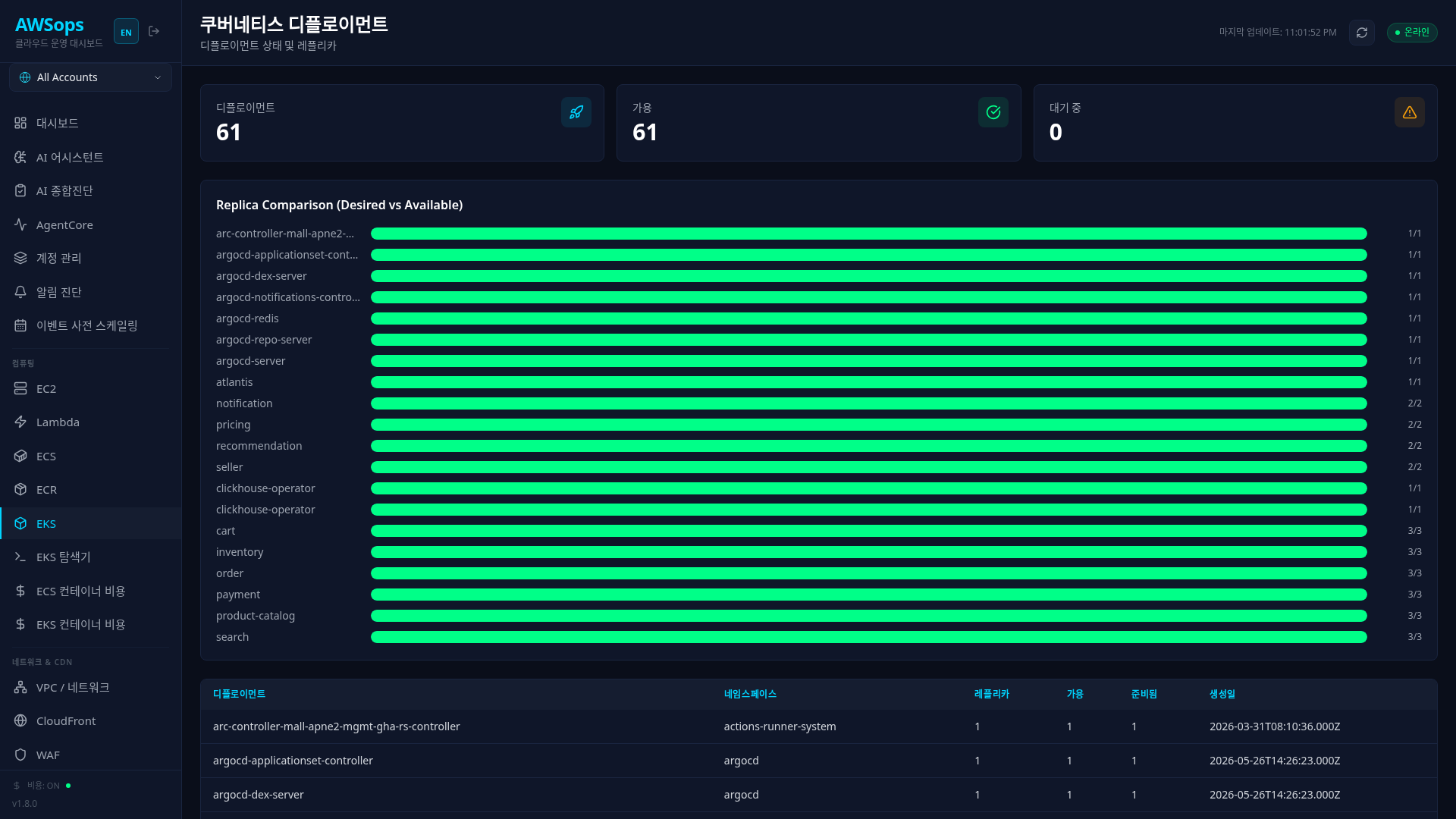
:::info Selected scope and observed results The top account/region filter applies to this page. Totals count resources actually queried in the selected registered-cluster scope, not every AWS resource. Same-named cluster options include account and region. Partial failures or query-limit notices mean results may be incomplete; narrow the scope and retry. :::
Key Features
Stats Cards
- Total Deployments: Observed Deployment count in the selected scope (cyan)
- Fully Available: Deployment count with all desired replicas available (green)
- Partially Available: Deployment count with only some replicas available (orange)
Replica Comparison Chart
Visually compare Desired vs Available replicas:
- Semi-transparent cyan bar: Desired (desired replica count)
- Green bar: Available (actual available replica count)
- Each Deployment shows
available/desirednumbers
Deployment Table
| Column | Description |
|---|---|
| Name | Deployment name |
| Namespace | Namespace |
| Desired | Desired replica count |
| Available | Available replica count |
| Ready | Ready status replica count |
| Created | Creation time |
Understanding Replica Status
| Status | Description | Action |
|---|---|---|
| Desired = Available = Ready | Fully normal | - |
| Available < Desired | Some Pods unavailable | Check Pod status |
| Ready < Available | Health check failed | Check application logs |
| Available = 0 | All Pods unavailable | Urgent action required |
How to Use
- Click Compute > K8s > Deployments in the sidebar
- Check the Partially Available count from the stats cards
- Identify problematic Deployments in the Replica Comparison chart
- Check detailed replica counts in the table
Deployment Update Strategies
RollingUpdate (Default)
- Gradually creates new version Pods and terminates old versions
maxSurge: Number of additional Pods that can be created simultaneouslymaxUnavailable: Number of Pods that can be unavailable simultaneously
Recreate
- Terminates all old version Pods before creating new versions
- Causes downtime, used to prevent resource conflicts
Tips
:::tip Partially Available Diagnosis If Available is less than Desired:
- Check Pod status (Pending, Failed)
- Check for node resource shortage
- Check for image pull errors
- Check for Readiness Probe failures :::
:::tip Rollout Monitoring During deployment, Available may temporarily be lower than Desired. If the difference persists after deployment completes, there's a problem. :::
:::info AI Analysis You can analyze with the AI Assistant using queries like "Deployment status", "Find Deployments with replica mismatch", "Analyze deployment failure cause", etc. :::
Related Pages
- EKS Overview - Cluster view in the selected scope
- EKS Pods - Check Pods of Deployments
- EKS Explorer - ReplicaSet details
- EKS Services - Services connected to Deployments