AI Diagnosis
A page for generating and reading comprehensive diagnostic reports that analyze your account's overall operational state from AWS-native data.
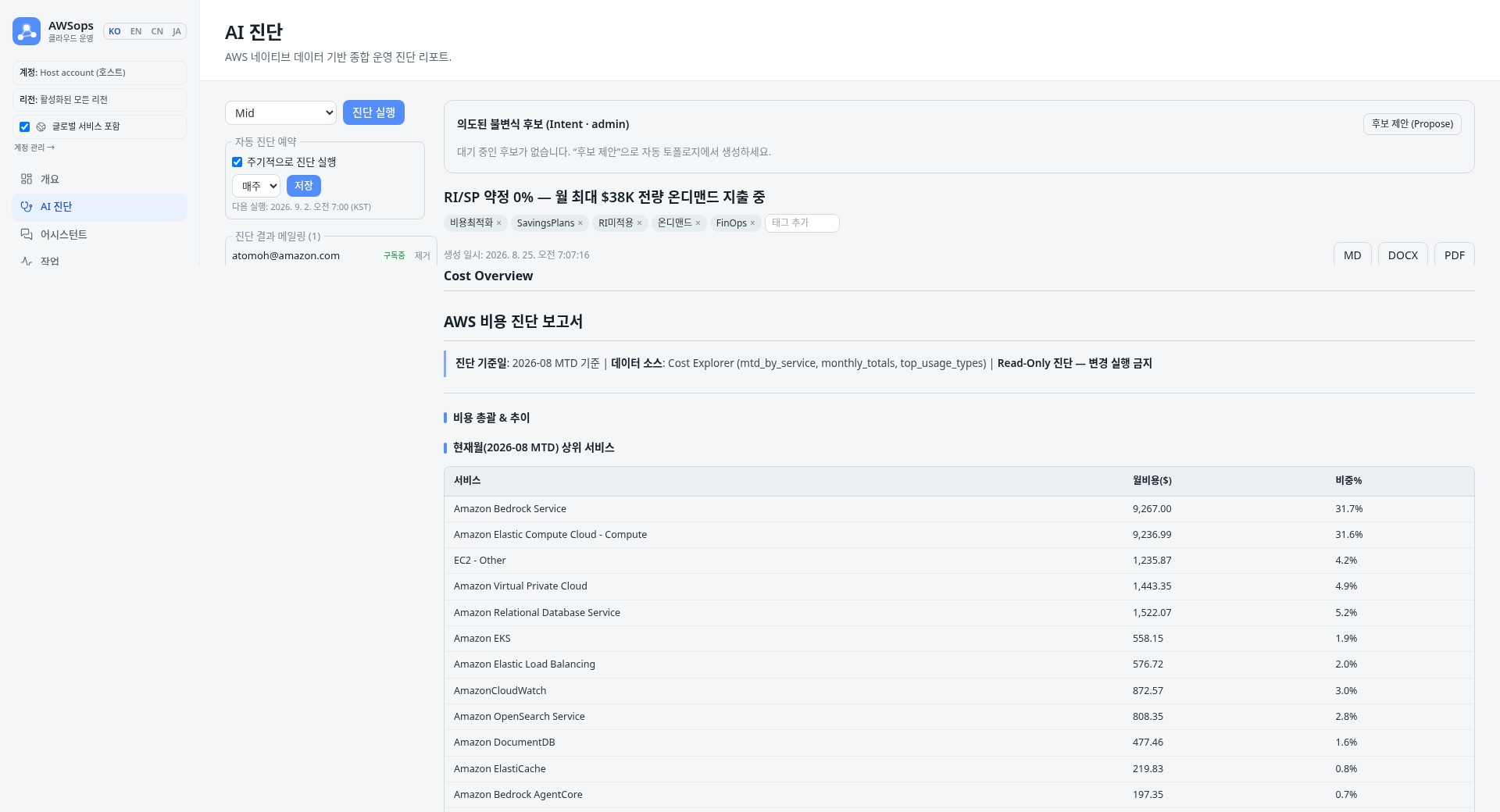
Features
Run a diagnosis
- Diagnosis depth (Tier): choose the scope of analysis.
- Light: a fast check of core items only (currently identical catalog/token budget to Mid)
- Mid: a balanced standard diagnosis (default)
- Deep: a broad analysis covering 15+1 sections (16 rendered). Only Deep lets you additionally pick a model (Sonnet / Opus), and choosing Opus shows an accompanying cost note.
- Report language: choose the report body language (한국어 / English / 中文 / 日本語). It defaults to the current UI language, and switching only the language within the same hour starts a new report.
- Press the 진단 실행 (Run diagnosis) button and the report is produced asynchronously by a background worker.
Progress indicator
- While generating, an mm:ss elapsed timer and a per-section completed/pending checklist grid accompany the progress bar; a completed report shows a section count · duration · report id stats bar (duration omitted on older reports without a recorded finish time).
- While the report is being produced, a live progress bar shows the data collection → section analysis → assembly stages.
- The report opens automatically once it is done.
Report list
The left sidebar lists your recent reports — completed rows carry inline MD/DOCX download links so you can download without opening the report:
- An auto-generated title, the id, depth (Tier), model, status, and creation date (KST)
Report body
- The body renders as collapsible section cards with severity icons and a sticky table of contents (TOC) sidebar on the right.
- Use the top buttons to export as MD / DOCX / PDF, or open Print view — a new tab with a white A4 layout (cover, numbered TOC, per-section page breaks) for direct browser Print-to-PDF.
Insight badges
- Invariant assessment coverage separates total, assessed, passed, violated and unassessed counts. Unassessed reasons appear in the UI, report body and exports; unassessed results or an empty violation list do not establish health or improvement. Historical reports without recorded coverage show assessment unavailable.
- The current collector path still needs relationship-resolution and encryption-aggregate integration, so its six invariant kinds remain unassessed. Read these separately from observations in other diagnosis sections.
- An intended-vs-actual / change insights badge row summarizes invariant violations and changes versus the previous report.
- The Intent (invariant candidates) panel lets you propose, accept, and reject candidates. (Admin-only; read-only for everyone else.)
Title, tags, and delete
- The report owner or an admin can edit the title inline, add and remove tags, and soft-delete the report.
Scheduled diagnosis & notifications
- Scheduled diagnosis: besides the cadence (weekly/biweekly/monthly) you can pick a weekday (weekly/biweekly), a day of month 1–28 (monthly), a run hour (KST), and the report language; the next run and last run times are both shown. Unset fields keep the interval-only behavior.
- Diagnosis mailing list: admins can, in addition to adding/removing subscribers, press Send test to deliver one test email to every confirmed subscriber and verify delivery. The email notification switch at the top of the panel pauses report/digest emails without a deploy (admin-only) — reports completed while paused are dropped from email (not re-sent on resume; a pause shorter than the ~15-minute digest cadence may drop nothing — the flag is checked per run), and the test-send button still works while paused (delivery-path verification). The same switch and subscriber list also govern the compliance benchmark completion mail on the shared topic.
How to use
- In the sidebar, click AI Operations > AI Diagnosis.
- Select a diagnosis depth (Light / Mid / Deep).
- If you chose Deep, optionally specify the model (Sonnet / Opus).
- Choose the report language (default: the current UI language).
- Press the 진단 실행 (Run diagnosis) button to start generation.
- Watch the stages on the progress bar; when it finishes, review the report that opens automatically.
- Navigate sections with the table of contents sidebar on the right (section cards collapse/expand), and export as MD / DOCX / PDF from the top.
- Edit the title and tags or delete the report if needed (when you have permission).
Tips
:::tip Duplicate-run protection If you run the same conditions (depth, model, and language) again within the hour, the existing report is returned instead of generating a new one, along with a duplicate-run notice. :::
:::info Permissions Editing the title, tags, and deletion are available only to the report owner or an admin. Proposing, accepting, and rejecting invariant candidates is admin-only and is shown read-only to other users. :::
:::info Read-only analysis AI Diagnosis only observes and analyzes AWS resources — it never modifies them. Reports are for analysis purposes only. :::
AI analysis tips
After reviewing a report, you can ask follow-up questions from the floating button or the AI Assistant page, for example:
- "What is the riskiest item in this diagnosis?"
- "What changed compared to the previous report?"
- "Explain the cause of the invariant violations shown."
Related pages
- AI Assistant - follow-up questions about report results
- Async Jobs - check the progress of diagnosis generation