

Browser Extension
Chrome Extension
Section titled “Chrome Extension”Not sure which capture option to use? See Meeting Sources for a side-by-side comparison of the Chrome Extension, Stream Audio, and Virtual Participant.
The extension adds a side panel to meeting tabs on Zoom, Microsoft Teams, Amazon Chime, Cisco Webex and Google Meet, capturing both your microphone and the other participants’ audio from the tab without adding a bot to the meeting. Google Meet is supported here and not by the Virtual Participant, so the extension is the route for Meet meetings.
Download and unzip the extension
Section titled “Download and unzip the extension”During the LMA stack deployment, the nested stack, BROWSEREXTENSIONSTACK, builds a pre-configured browser extension package which is ready to be downloaded and installed in your browser.
Currently only Chrome is supported, but we expect to add extension packages for other browsers later.
To download the Chrome browser extension zip file, either:
-
Open the
Outputstab of the LMA stack, and choose the download URL labeledChromeExtensionDownloadUrlto download the filelma-chrome-extension.zip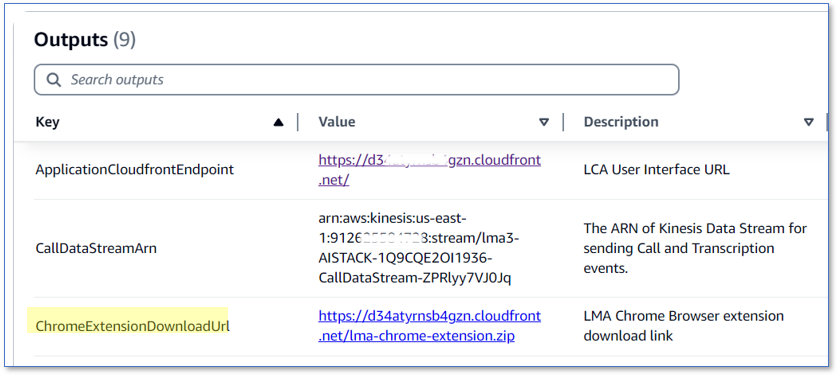
-
OR Open the LMA web application, choose Chrome Extension under Sources in the side navigation, and click Download extension on the Chrome Extension page. The page also includes step-by-step install instructions, usage steps, and a troubleshooting section.
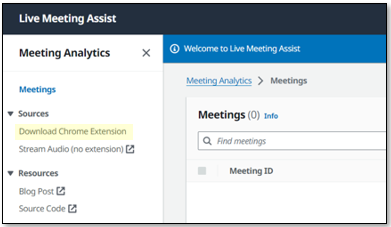
After downloading lma-chrome-extension.zip, right click and expand the zip file to create a local folder named lma-chrome-extension.
Install the Chrome extension
Section titled “Install the Chrome extension”From within Chrome, navigate to chrome://extensions. On the left side, click the Load unpacked, navigate to the lma-chrome-extension folder (which you unzipped from the download), and click select. This will load your extension.
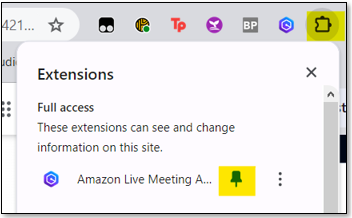
Pin your new LMA extension to the browser tool bar - select the extensions icon and pin the extension Amazon Live Meeting Assistant.
How to use
Section titled “How to use”Once you have the extension installed, login with your LMA credentials.
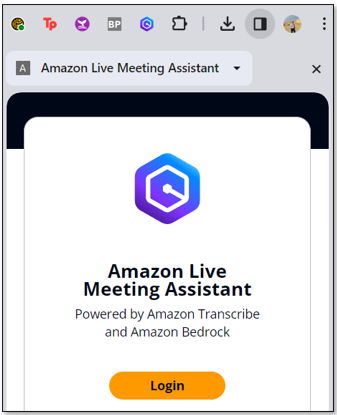
Navigate to your meeting platform’s page. If you already have it loaded, please reload the page.
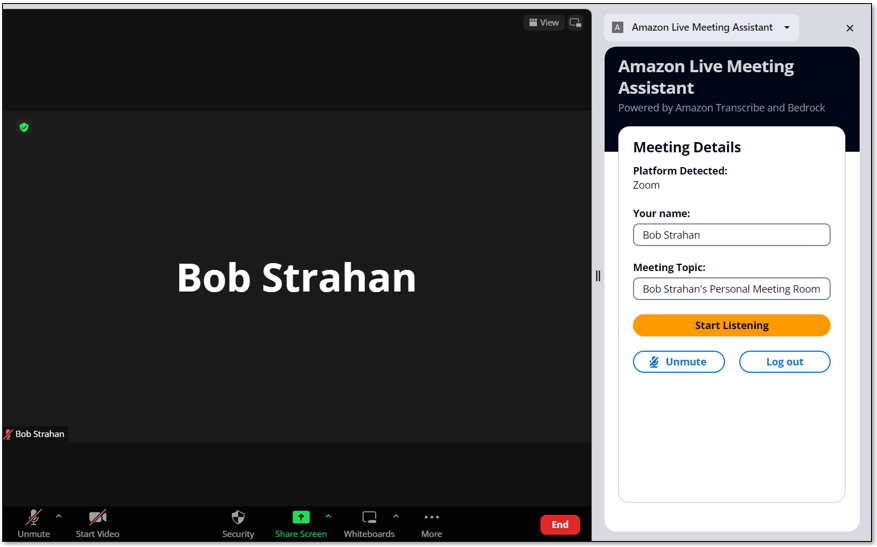
Select the Start Listening button.
Choose Allow on the popup asking you to share the browser tab.
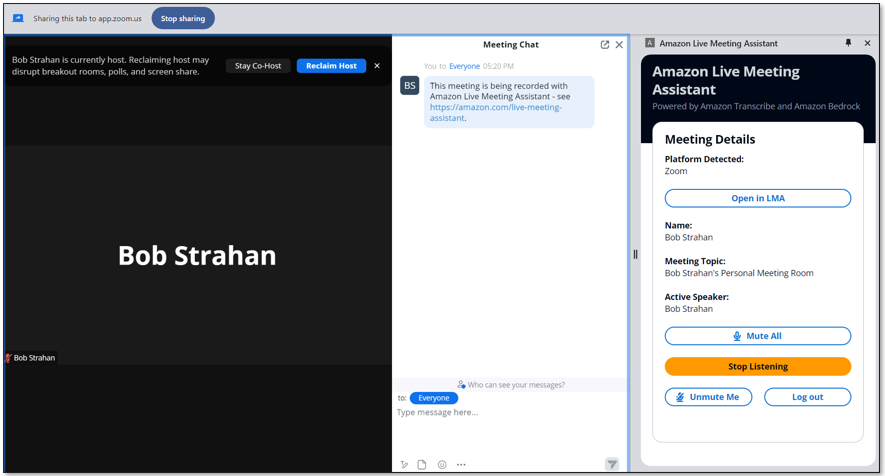
Choose Open in LMA to see your live transcript, select language, and to interact with the meeting assistant.
If the panel shows no platform, name or active speaker
Section titled “If the panel shows no platform, name or active speaker”Audio capture and the meeting readouts come from different parts of the extension. Audio is captured from whichever tab you share, so it works on any page. The Platform Detected, Your name and Active Speaker fields come from a small script that reads the meeting page itself, and that script is registered for specific meeting hostnames. When a meeting platform changes the address it serves from, or changes the structure of its page, those three fields go blank together while the transcript keeps working.
If that happens:
- Reload the meeting tab after installing or reloading the extension. The page-reading script is only injected into tabs loaded after it.
- Open the panel once you are in the meeting, not while you are still in the lobby — a lobby page has no participants to read.
- Type your name and the meeting topic by hand. Both fields are editable, and anything you type is kept rather than overwritten. Your name is pre-filled from your LMA login when the meeting page does not supply one.
- Check the hostname in your address bar. Microsoft serves Teams from both
teams.microsoft.comandteams.cloud.microsoft, and Zoom from several regionalzoom.ushosts; all of these are supported, but a host not on the list loads no reader. If you are on an address not listed above, please open an issue with the hostname. - Active Speaker is only shown while listening, and only on platforms that expose who is speaking in their page. A blank active speaker does not affect the transcript, which is produced from the audio.