

Stream Audio
Stream Audio
Section titled “Stream Audio”Table of Contents
Section titled “Table of Contents”- Overview
- Use Cases
- Step-by-Step Walkthrough
- Speaker Identification
- Browser Compatibility
- Technical Details
- Important Notice
- See Also
Overview
Section titled “Overview”Not sure which capture option to use? See Meeting Sources for a side-by-side comparison of the Chrome Extension, Stream Audio, and Virtual Participant.
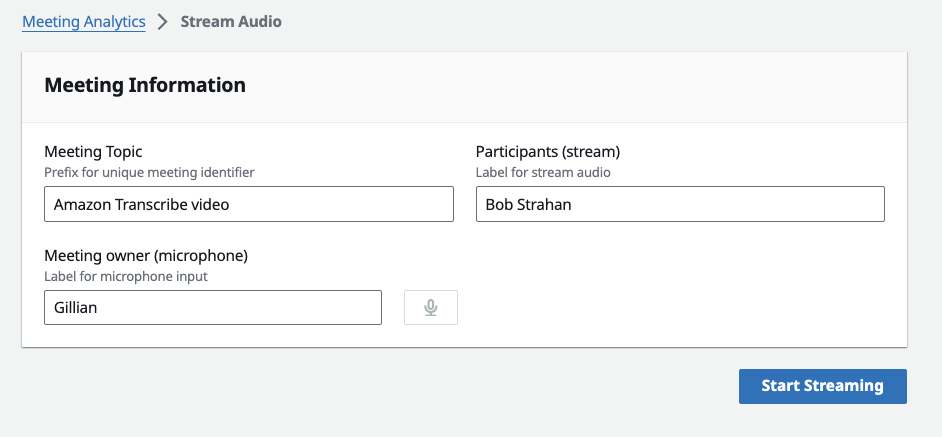
The Stream Audio tab in the LMA web UI lets you capture stereo audio from your Chrome browser — combining your microphone with any incoming audio source (meeting app, softphone, YouTube, etc.).
Use Cases
Section titled “Use Cases”Use Stream Audio with any browser-based audio application when you want to stay in your browser. It works with any audio source playing in Chrome, including:
- Browser-based meeting applications (Amazon Chime, Google Meet, etc.)
- Softphone or VoIP applications running in a browser tab
- YouTube videos or other media for demo and testing purposes
- Any web application that produces audio output
Step-by-Step Walkthrough
Section titled “Step-by-Step Walkthrough”-
Open any audio source in a Chrome browser tab (meeting app, softphone, or for demo purposes, a YouTube video).
-
In the LMA UI, navigate to Stream Audio.
-
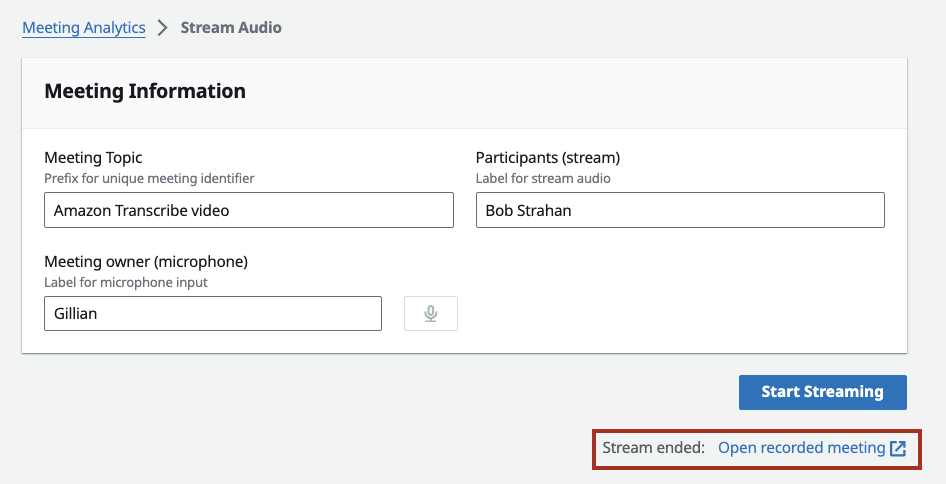
Enter a Meeting Topic — this is appended to the timestamp to create a unique meeting ID.
-
Enter the Meeting owner (microphone) — your name, which is applied to microphone audio for speaker attribution.
-
Enter Participants (stream) — other participants’ names, applied to incoming audio for speaker attribution.
-
Optionally enable Speaker identification for either channel — see Speaker Identification below.
-
Click Start Streaming.
-
Select the Chrome tab with your audio source, then click Allow to share the tab audio.
-
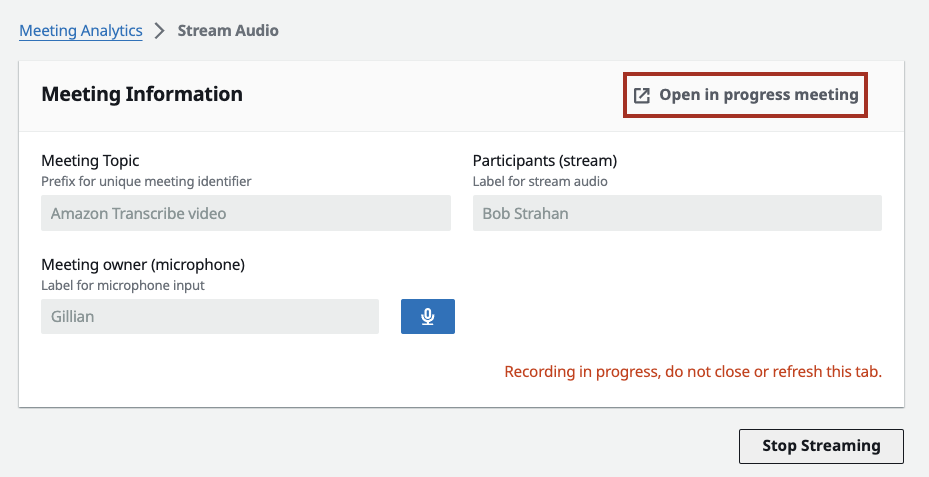
Use the “Open in progress meeting” link to view live transcription. It may take a few seconds for the first transcript segments to appear.
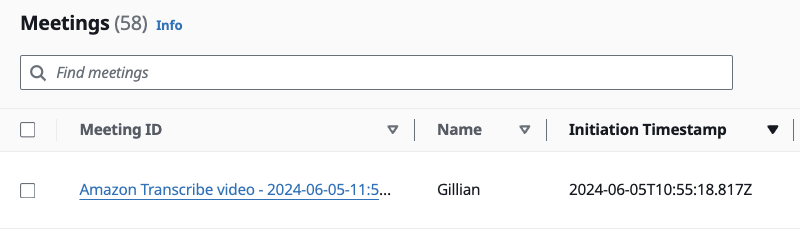
- The meeting also appears in the meeting list as “In Progress”.
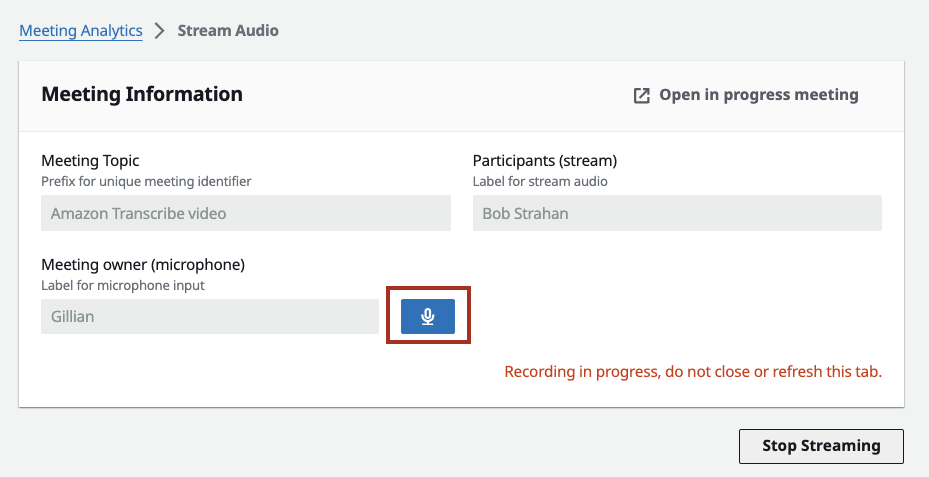
- Use the mute/unmute button to control your microphone during the stream.
-
Click Stop Streaming to end the session.
-
A link to the recorded meeting appears at the bottom of the Stream Audio page.
Speaker Identification
Section titled “Speaker Identification”The names you enter above give one speaker name per channel: everything from the shared tab is attributed to Participants (stream) and everything from your mic to Meeting owner (microphone). That is enough for a one-to-one conversation, but not when several people share a channel.
Enable Speaker identification to have Amazon Transcribe tell those voices apart. Each channel is controlled independently, so you can turn on either, both, or neither:
| Setting | Turn it on when |
|---|---|
| Identify separate speakers in the shared tab audio | The captured call has several remote participants |
| Identify separate speakers on my microphone | Several people share your microphone, e.g. in a meeting room |
Distinct voices are appended to the channel’s name as (spk_0), (spk_1), and so
on — for example Other Participant (spk_0) and Other Participant (spk_1). The
transcript then shows each voice as its own turn, and the labels also reach the
meeting summary and the Meeting Assistant.
Notes:
- Both settings are off by default and can only be changed before you start streaming.
- Speakers are numbered per channel, each starting at
spk_0. - A segment gets its label when it finalizes, so it briefly appears without one while still being transcribed.
- Accuracy is best with five or fewer voices per channel.
- Labels are numbers, not names — Transcribe distinguishes voices but does not identify who they belong to. If you need real names for meeting participants, use the Chrome Extension or a Virtual Participant, which read them from the meeting.
- There is no additional Amazon Transcribe charge for speaker identification.
Browser Compatibility
Section titled “Browser Compatibility”Chrome browser is required. Stream Audio relies on Chrome’s tab audio capture API to capture audio from other browser tabs. Other browsers do not support this capability.
Technical Details
Section titled “Technical Details”Stream Audio combines your microphone input and the selected tab’s audio into a stereo (two-channel) audio stream. Your microphone is assigned to one channel while the tab audio is assigned to the other, enabling speaker attribution during transcription. The combined stream is sent via WebSocket to the Fargate-based transcription server for real-time processing.
Because attribution is per channel, several people sharing one microphone appear as a single speaker unless you tick the Speaker identification boxes above. Your speaker-identification choices are sent once, in the session’s opening message, and the server enables speaker partitioning for the channels you chose. Which engine does the partitioning depends on the deployment: Amazon Transcribe by default, or the on-demand ASR & diarization engine when that is deployed. See WebSocket Streaming API for the protocol details.
Important Notice
Section titled “Important Notice”Always obtain permission from all participants before recording a meeting or conversation. Recording others without their knowledge or consent may violate local laws and organizational policies.
See Also
Section titled “See Also”- Upload Audio — Transcribe an existing audio/video recording instead of streaming live
- Virtual Participant — Join meetings as a separate automated participant
- WebSocket Streaming API — Technical details on the streaming protocol
- On-demand ASR & Speaker Diarization (MicroVM) — Label the transcript per voice rather than per audio channel