

User-Based Access Control
User-Based Access Control
Section titled “User-Based Access Control”Table of Contents
Section titled “Table of Contents”- Overview
- Admin User
- Non-Admin User
- Authorized Account Email Domain
- Meeting Sharing
- Recording Playback
- Meeting Deletion
- Upgrading from v0.1.9 or Earlier
- Service Limits
Overview
Section titled “Overview”Starting with v0.2.0, LMA provides User-Based Access Control (UBAC). Each non-admin user sees only their own meetings and meetings that have been explicitly shared with them. Admin users can see all meetings across all users. This ensures meeting privacy while still allowing collaboration through sharing.
Admin User
Section titled “Admin User”The stack creator or updater is automatically assigned the “Admin” role in Amazon Cognito.
Admin users have the following privileges:
- Can see all meetings across all users
- Can share any meeting with other users
- Can delete any meeting
Recommendation: Use the jdoe+admin@example.com email format for your admin account. This separates your admin account from your personal account, allowing you to have a non-admin account for day-to-day use while retaining admin access when needed.
Non-Admin User
Section titled “Non-Admin User”Non-admin users sign up via the LMA web UI. Their email address must belong to one of the configured Authorized Account Email Domains.
Non-admin users:
- Only see meetings they own or that have been shared with them
- Can share and delete only their own meetings
- Cannot access admin configuration pages
Authorized Account Email Domain
Section titled “Authorized Account Email Domain”The Authorized Account Email Domain setting controls who can self-register for an LMA account.
- Configured during deployment as a CloudFormation parameter
- Accepts a comma-separated list of email domains (e.g.,
example.com,acme.org) - Users with an email address matching one of the listed domains can self-register through the web UI
- Leave blank to prevent self-registration entirely (only the admin account will exist)
Meeting Sharing
Section titled “Meeting Sharing”Available since v0.2.5
Meeting sharing allows owners to grant read-only access to other users.
How to Share
Section titled “How to Share”-
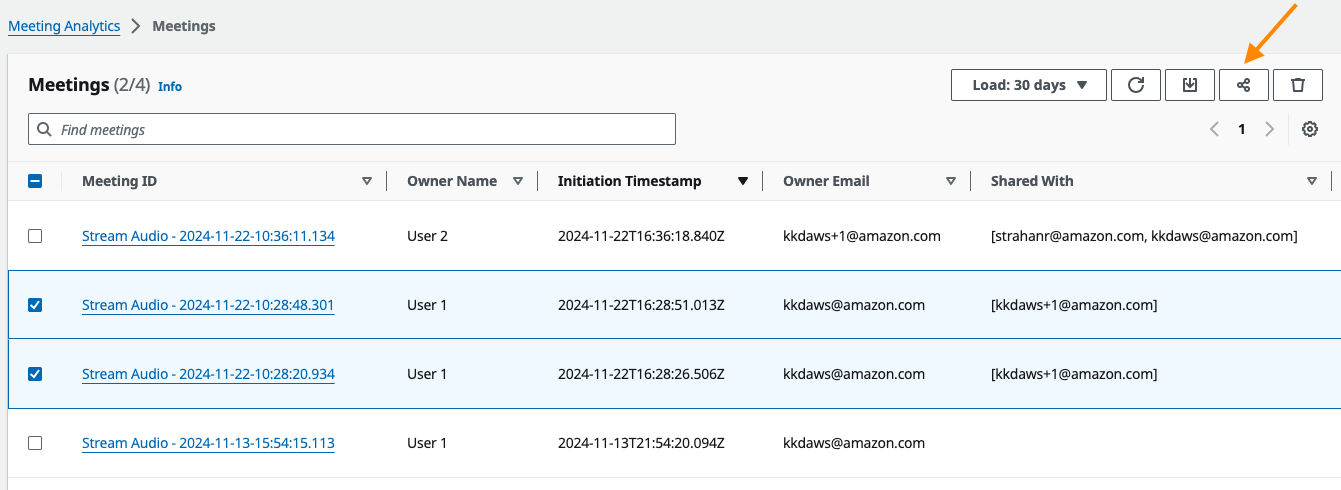
Select one or more owned meetings from the meeting list
-
Click the share icon in the toolbar
-
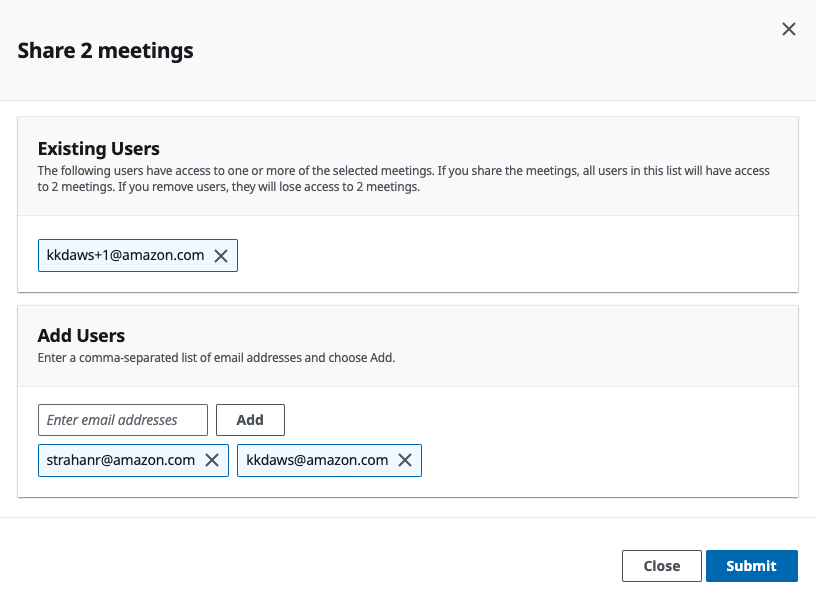
Enter comma-separated email addresses and click Add
-
Remove existing shared users if needed
-
Click Submit
-
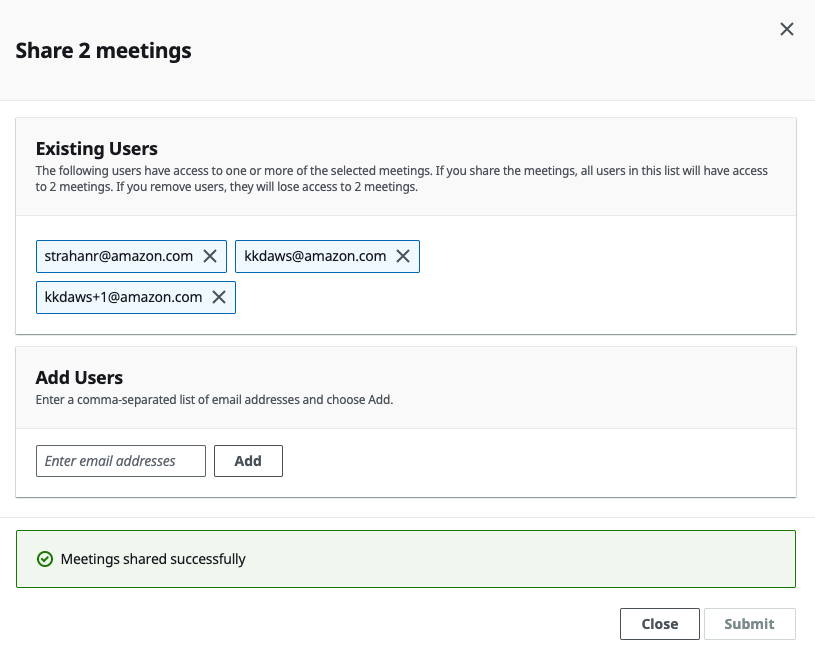
Wait for the success confirmation
Sharing Behavior
Section titled “Sharing Behavior”- Shared meetings appear in recipients’ meeting lists with read-only access
- You can share live meetings that are still in progress (there is a small chance of missing transcript segments during the sharing operation)
- You can share with users who have not yet signed up — they must create an account to view the shared meeting
- Sharing does not validate recipient email addresses against the Authorized Email Domain setting
- Recipients do not receive an email notification when a meeting is shared with them
Viewing Shared Meetings
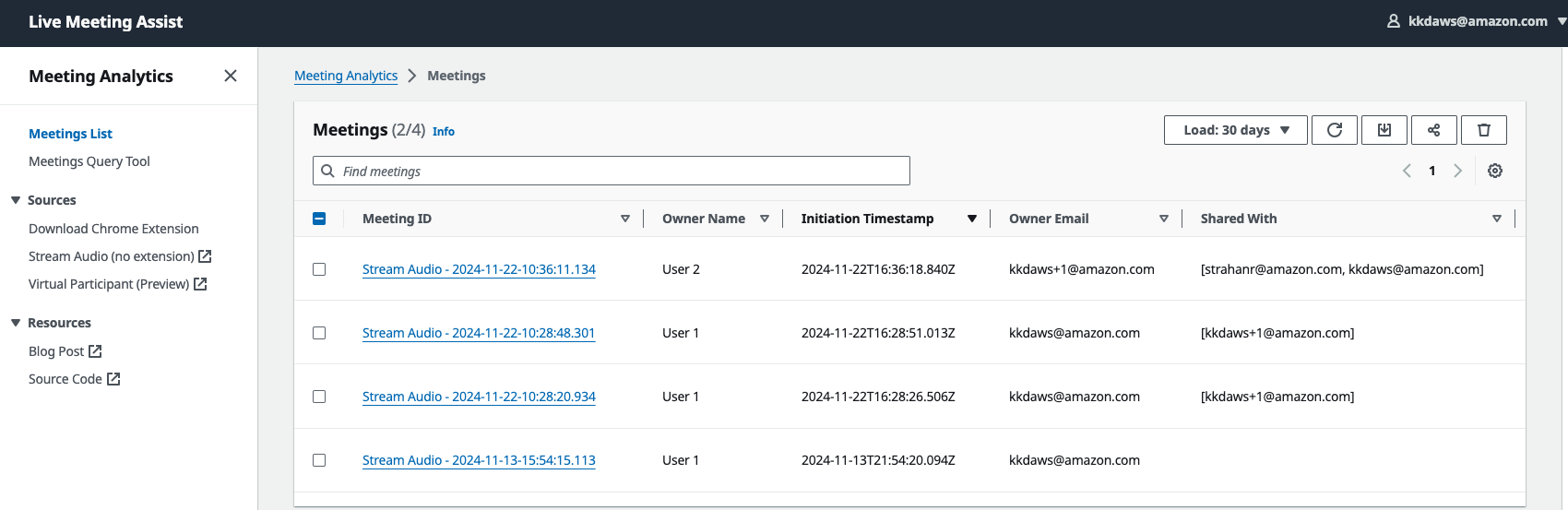
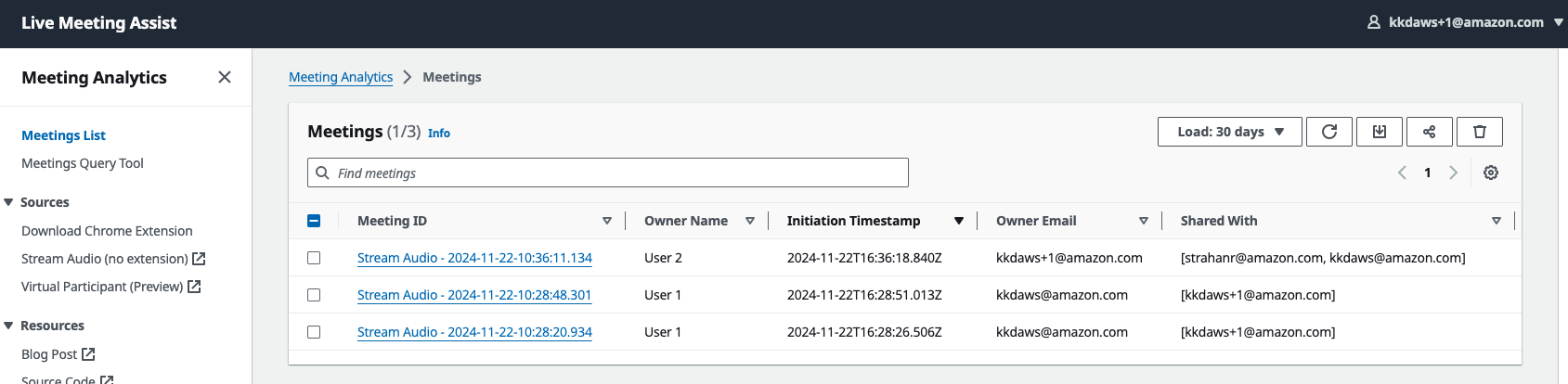
Section titled “Viewing Shared Meetings”Different users see different meeting lists based on ownership and sharing:
Recording Playback
Section titled “Recording Playback”Meeting metadata — the meeting list, transcript segments, summaries and meeting-assistant history — is served by the AppSync GraphQL API, and the owner / shared-with rules described above are applied there before any result is returned.
The audio and video recordings travel on a separate path. The meeting record stores the
recording’s S3 location, and the web UI’s players sign their own GET for that object using
the browser’s Amazon Cognito identity-pool credentials, reading the media directly from S3
rather than through AppSync or CloudFront. A signed link is generated when playback starts
and is short-lived.
Those identity-pool credentials come from the CognitoAuthorizedRole in
lma-cognito-stack, whose S3 grant is limited to the two key prefixes the players read —
the audio recordings prefix (lma-audio-recordings/) and the video recordings prefix
(lma-video-recordings/). The other prefixes in the recordings bucket, such as
lma-transcripts/, lma-uploads-pending/ and lma-video-chunks/, are reachable only by
the backend roles that own them. If a future release adds another prefix that the players
read, that prefix has to be added to the same grant.
If your organisation requires recording playback to be governed by the same per-meeting decision as the metadata, plan for that decision to be applied where the playback link is produced, which today is the web UI.
Meeting Deletion
Section titled “Meeting Deletion”Available since v0.2.7
Meeting owners can permanently delete their meetings.
How to Delete
Section titled “How to Delete”-
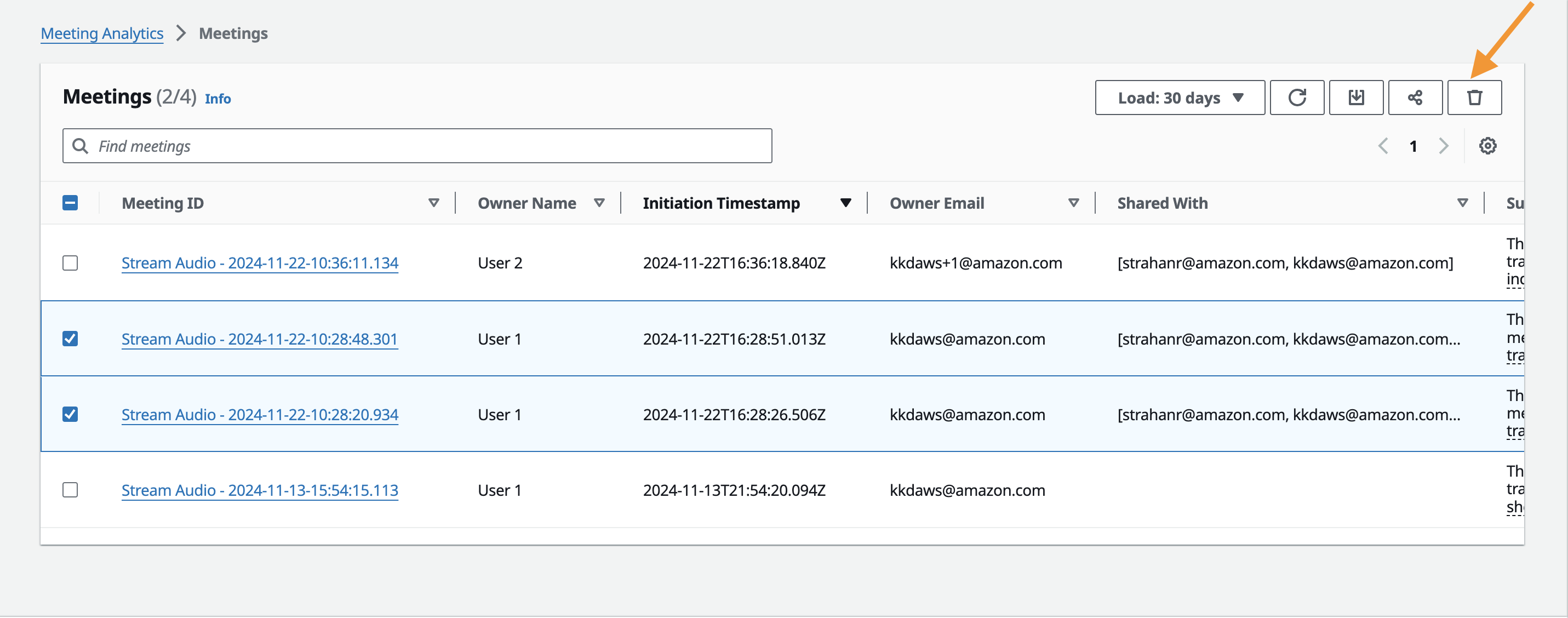
Select one or more owned meetings from the meeting list
-
Click the delete icon in the toolbar
-
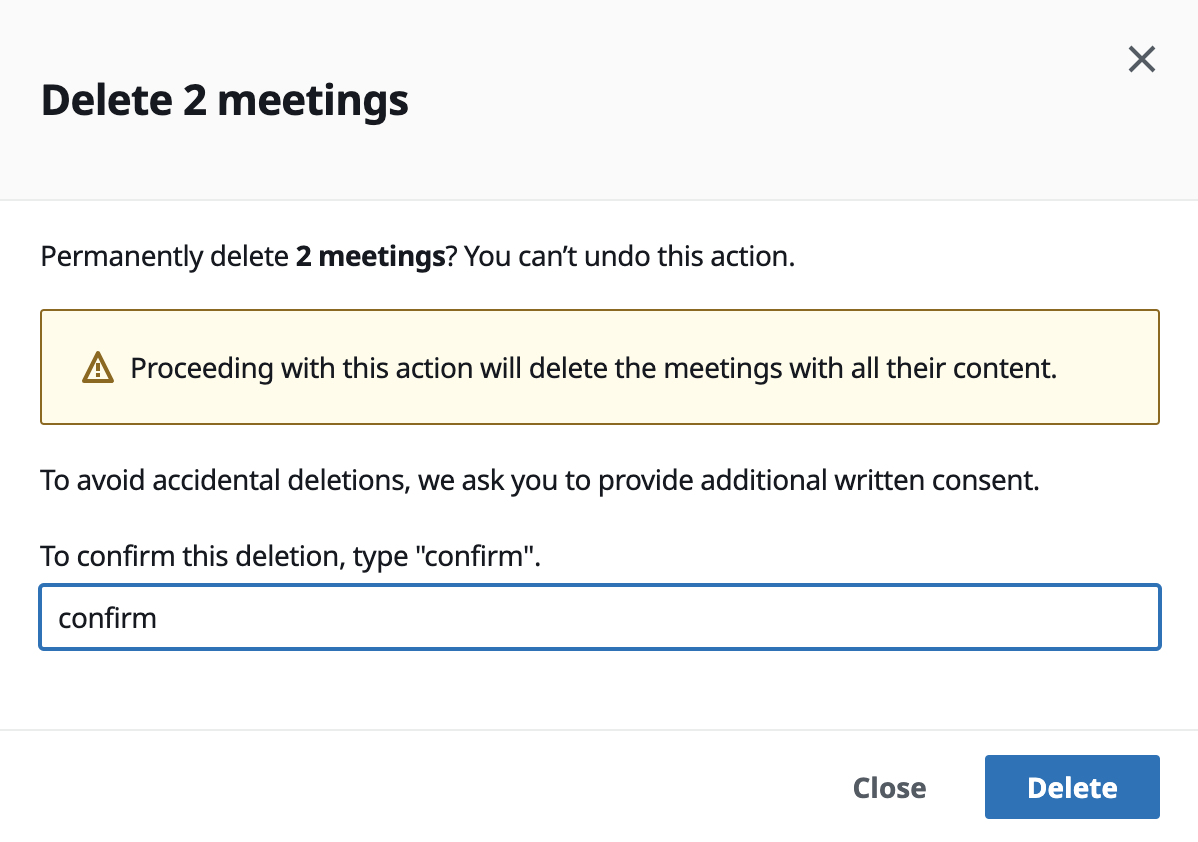
Type “confirm” in the confirmation dialog
-
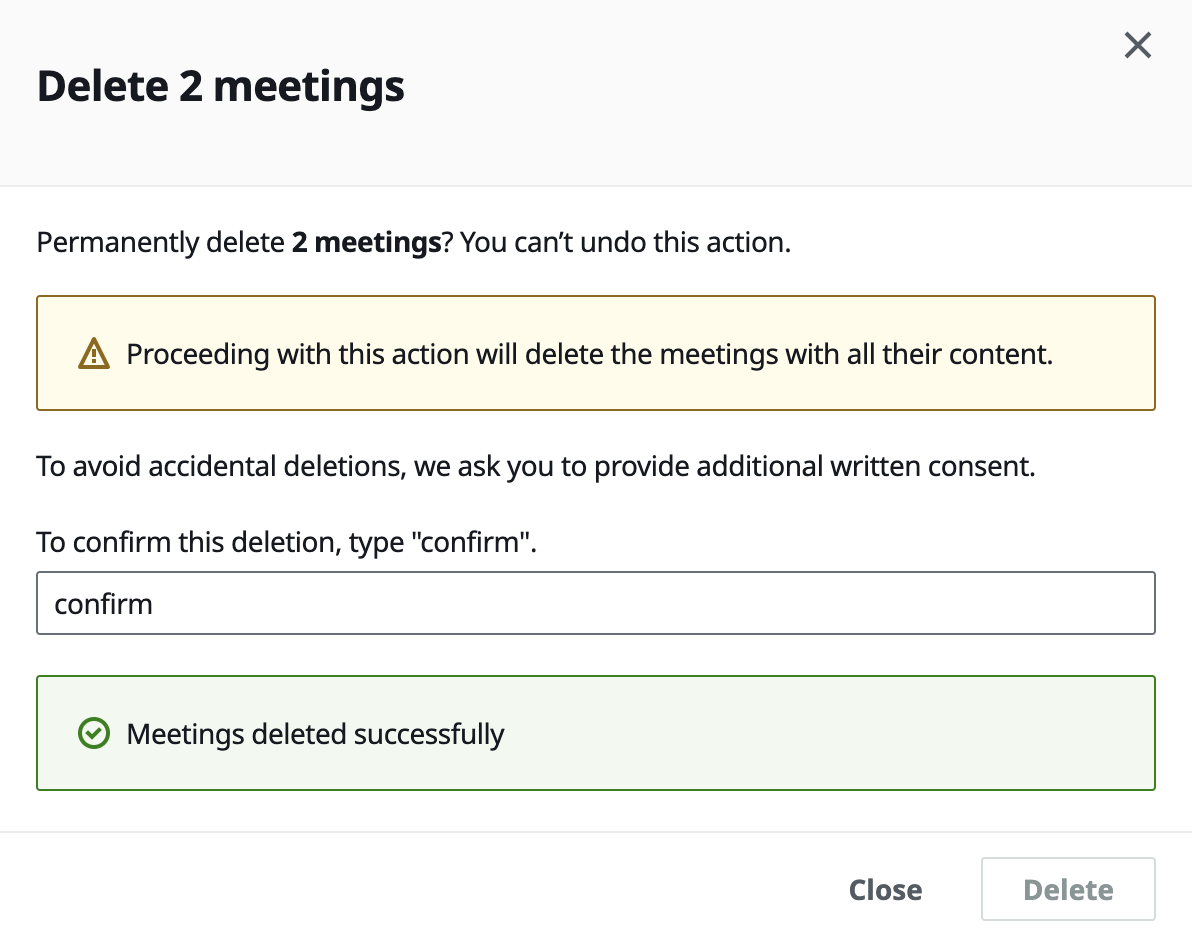
Click Delete
-
Wait for the success confirmation
Deletion Behavior
Section titled “Deletion Behavior”- Deleted meetings are automatically removed from shared users’ meeting lists
- Shared users do not receive a notification when a meeting they can access is deleted
- Deletion is permanent and cannot be undone
Upgrading from v0.1.9 or Earlier
Section titled “Upgrading from v0.1.9 or Earlier”Upgrading to v0.2.0 or later from v0.1.9 or earlier introduces a breaking change: the Amazon Cognito user pool is deleted and recreated. All users (admin and non-admin) must re-register.
What to Expect
Section titled “What to Expect”- Admin user: Receives a new temporary password email. After signing in and setting a new password, the admin retains access to all previous meetings.
- Non-admin users: Must create new accounts via the web UI. They will lose access to their previous meetings unless the admin shares those meetings with them.
Recommendations
Section titled “Recommendations”- Change the admin email to
jdoe+admin@example.comformat during the upgrade to separate admin and personal accounts - Communicate the upgrade to non-admin users in advance so they know to re-register
- After upgrade, the admin can share previous meetings with users who need access
Service Limits
Section titled “Service Limits”Amazon Transcribe has a default limit of 25 concurrent transcription streams. If your organization runs many simultaneous meetings, you may need to request a service limit increase through the AWS console.
See also: Prerequisites & Deployment | Web UI Guide