

Prerequisites and Deployment Guide
Prerequisites and Deployment Guide
Section titled “Prerequisites and Deployment Guide”This guide covers everything you need to deploy the Live Meeting Assistant (LMA) solution, from AWS account requirements through your first login.
Table of Contents
Section titled “Table of Contents”- AWS Account Requirements
- Amazon Bedrock Model Access
- Knowledge Base Options
- Deploy the CloudFormation Stack
- Key Parameters to Configure
- What the Stack Creates
- Deployment Time
- Setting Your Password
- Next Steps
AWS Account Requirements
Section titled “AWS Account Requirements”You need an AWS account with permissions to create and manage the following services:
- Amazon S3
- Amazon CloudFront
- Amazon Cognito
- AWS AppSync
- Amazon Kinesis
- AWS Fargate (ECS)
- Elastic Load Balancing (ALB)
- Amazon Bedrock
- Amazon VPC
- AWS IAM (roles and policies)
- AWS Lambda
- AWS CloudFormation
Your IAM user or role must have sufficient privileges to create IAM roles and policies, launch CloudFormation stacks, and provision resources across these services. Using an account with AdministratorAccess is the simplest approach for initial deployment.
Amazon Bedrock Model Access
Section titled “Amazon Bedrock Model Access”Before deploying LMA, you must enable access to the following foundation models in your target AWS region via the Amazon Bedrock console:
Required models:
- Amazon Titan Text Embeddings V2 — Used for generating text embeddings in the knowledge base.
- Anthropic Claude models (Claude 4+) — LMA supports Claude Sonnet 4.5, Claude Opus 4, and Claude Haiku 4.5 for the meeting assistant and summarization.
- Amazon Nova models — Supported as alternative LLM options for the meeting assistant and summarization.
To enable model access:
- Open the Amazon Bedrock console.
- Navigate to Model access in the left sidebar.
- Click Manage model access.
- Select the models listed above and submit your access request.
- Wait for access status to show Access granted before proceeding.
Knowledge Base Options
Section titled “Knowledge Base Options”LMA offers three options for configuring the Bedrock Knowledge Base, which enables the meeting assistant to answer questions using your organization’s documents:
Option 1: No Knowledge Base (STRANDS_BEDROCK)
Section titled “Option 1: No Knowledge Base (STRANDS_BEDROCK)”Select STRANDS_BEDROCK as the MeetingAssistService parameter. This deploys the Strands-based meeting assistant without a knowledge base. The assistant can still answer questions about the current meeting transcript, but will not have access to supplemental documents.
Option 2: Auto-Create Knowledge Base (STRANDS_BEDROCK_WITH_KB Create)
Section titled “Option 2: Auto-Create Knowledge Base (STRANDS_BEDROCK_WITH_KB Create)”Select STRANDS_BEDROCK_WITH_KB as the MeetingAssistService and choose Create for the Transcript Knowledge Base option. LMA will automatically provision a Bedrock Knowledge Base for you.
To populate the knowledge base with your own content, you can provide:
- S3 bucket with documents — Specify an S3 bucket containing your documents (PDFs, text files, etc.) that the assistant should reference.
- Web crawling URLs — Provide URLs for the knowledge base to crawl and index.
You can configure both sources to give the assistant access to a broad set of reference material.
Option 3: Use an Existing Knowledge Base (STRANDS_BEDROCK_WITH_KB Use Existing)
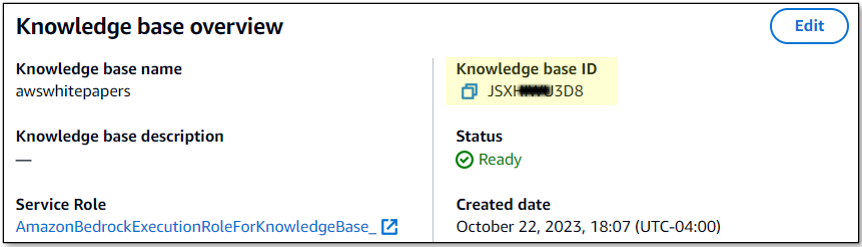
Section titled “Option 3: Use an Existing Knowledge Base (STRANDS_BEDROCK_WITH_KB Use Existing)”Select STRANDS_BEDROCK_WITH_KB as the MeetingAssistService and choose Use Existing for the Transcript Knowledge Base option. You will need to provide your existing Knowledge Base ID.
You can find the Knowledge Base ID in the Amazon Bedrock console under Knowledge bases.
Deploy the CloudFormation Stack
Section titled “Deploy the CloudFormation Stack”Option 1: Using LMA CLI (Recommended)
Section titled “Option 1: Using LMA CLI (Recommended)”Install the CLI and deploy in one command:
pip install -e lib/lma_sdk lib/lma_cli_pkglma-cli deploy --stack-name LMA --admin-email user@example.com --waitThe CLI auto-selects the correct template for your region and streams deployment events in real-time. See the LMA CLI Reference for all options.
Option 2: Using AWS Console
Section titled “Option 2: Using AWS Console”Launch the LMA stack in one of the supported AWS regions using the buttons below:
| Region | Launch Stack |
|---|---|
| US East (N. Virginia) | Launch Stack |
| US West (Oregon) | Launch Stack |
| Asia Pacific (Tokyo) | Launch Stack |
| Europe (Ireland) | Launch Stack |
Clicking the link opens the CloudFormation console with the LMA template pre-loaded. Review the parameters, acknowledge the IAM capabilities checkbox, and click Create stack.
Key Parameters to Configure
Section titled “Key Parameters to Configure”While the stack has many configurable parameters, pay special attention to these:
-
Admin Email — The email address for the initial admin user. A temporary password will be sent to this address. Using a plus-alias format (e.g.,
jdoe+admin@example.com) is recommended so you can easily create additional test users later. -
Authorized Account Email Domain — The email domain (e.g.,
example.com) that restricts which users can create accounts. Only email addresses matching this domain will be allowed to sign up. -
MeetingAssistService — Choose the meeting assistant backend:
STRANDS_BEDROCK— Strands agent without a knowledge base.STRANDS_BEDROCK_WITH_KB— Strands agent with a Bedrock Knowledge Base.
-
Transcript Knowledge Base — Default value is
BEDROCK_KNOWLEDGE_BASE. When usingSTRANDS_BEDROCK_WITH_KB, choose Create to auto-provision a new knowledge base or Use Existing to reference one you already have.
For a complete list of all available parameters, see the CloudFormation Parameters Reference.
What the Stack Creates
Section titled “What the Stack Creates”The CloudFormation deployment provisions the following resources:
- Amazon S3 buckets — For storing recordings, documents, and web application assets.
- AWS Fargate WebSocket server with ALB — Handles real-time audio streaming from the browser.
- Amazon Kinesis Data Streams — Ingests and processes streaming transcript data.
- Strands agent resources — Powers the AI meeting assistant, including Lambda functions and agent configuration.
- Amazon Bedrock Knowledge Base (optional) — Provides document-grounded answers when configured.
- AWS AppSync GraphQL API — Manages real-time data synchronization between the backend and the web UI.
- Amazon CloudFront distribution and Amazon Cognito — Serves the LMA web application with user authentication and authorization.
- Amazon VPC — Network isolation for Fargate tasks and other compute resources.
- IAM roles and policies — Least-privilege permissions for all service components.
Deployment Time
Section titled “Deployment Time”The full stack deployment typically takes 35 to 40 minutes to complete. You can monitor progress in the CloudFormation console under the Events tab for your stack.
Do not attempt to use the application until the stack status shows CREATE_COMPLETE.
Setting Your Password
Section titled “Setting Your Password”Once deployment is complete, you will receive an email at the Admin Email address you specified during setup. This email contains a temporary password.
-
Open the LMA application URL (found in the CloudFormation stack Outputs tab).
-
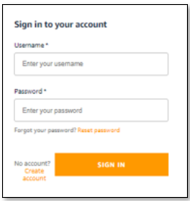
Enter the Admin Email and the temporary password from the email.
-
You will be prompted to create a new password. Your new password must meet the following requirements:
- At least 8 characters long
- Contains at least one uppercase letter
- Contains at least one lowercase letter
- Contains at least one number
- Contains at least one special character
-
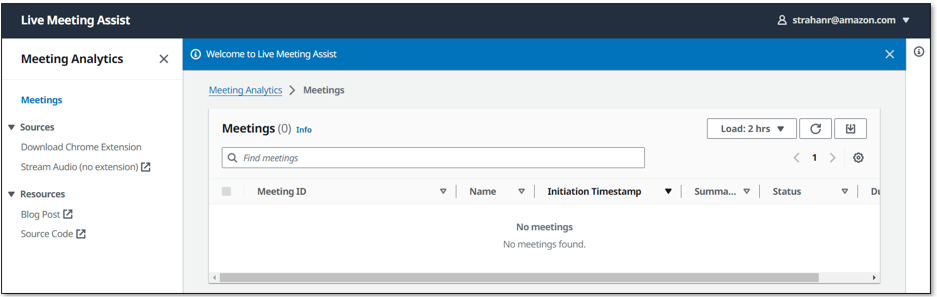
After setting your new password, you will be logged in to the LMA application.
Next Steps
Section titled “Next Steps”- Quick Start Guide — Walk through your first meeting with LMA.
- CloudFormation Parameters Reference — Detailed descriptions of every stack parameter.
- Developer Guide — Instructions for building LMA from source.