Actuarial Analysis Tools
Comprehensive actuarial analysis solution that brings AI-powered natural language interfaces and advanced statistical modeling to insurance claims processing.
This solution addresses critical challenges in insurance operations. It provides real-time fraud detection, litigation risk assessment, loss reserving calculations, and predictive analytics, all accessible through conversational AI in AWS Quick.
Business Value
For Insurance Companies:
- Reduce Claims Processing Time by 60-80% through automated analysis
- Improve Fraud Detection Accuracy with multi-factor scoring algorithms
- Enhance Reserve Adequacy using Chain Ladder and Bornhuetter-Ferguson methodologies
- Minimize Litigation Exposure through early risk identification
- Speed Up Actuarial Workflows with natural language query interfaces
For Actuaries & Claims Professionals:
- Query complex claims data using plain English instead of SQL
- Generate loss development triangles and IBNR calculations instantly
- Monitor KPIs and receive automated alerts for unusual patterns
- Access 7 specialized analysis tools through a unified interface
- Use session-based memory for complex multi-step analyses
Architecture
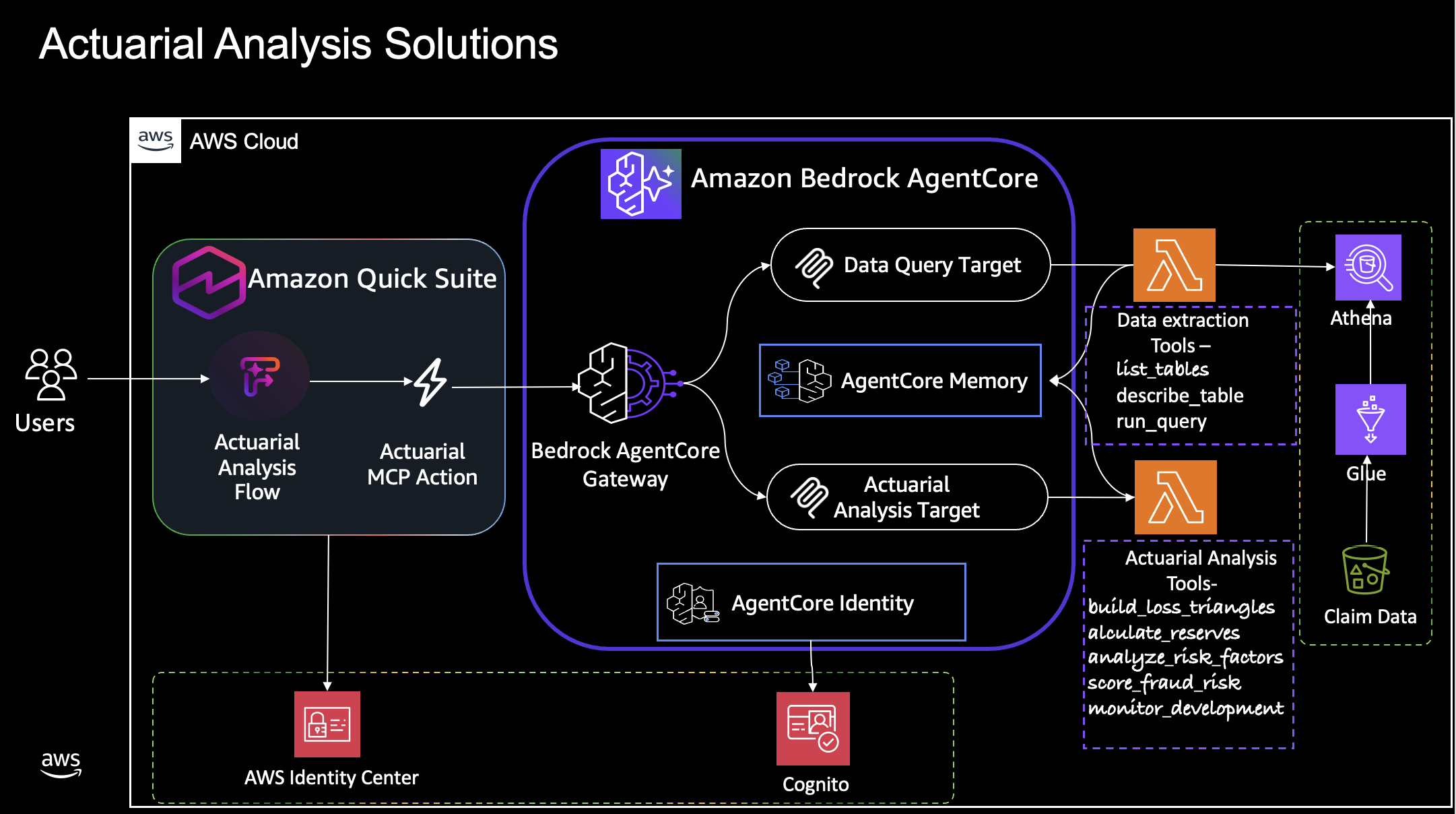
Overview
Complete actuarial analysis solution with:
- 7 Specialized Tools for claims analysis
- SQL Query Engine for flexible data access (Athena, RDS, Redshift, Snowflake, etc.)
- AgentCore Gateway for natural language interaction
- Session-Based Memory for efficient data sharing
- AWS Quick Integration with conversational AI interface and automated workflow orchestration through Flows
Project Structure
The project combines the CDK app, the Lambda tool code, and sample data:
actuarial-analytics-platform/
 app.py                      # CDK deployment entry point
 cdk.json                    # CDK configuration
 pyproject.toml              # Project dependencies and configuration
 deploy.sh                   # Deployment script
 QUICKSUITE.md              # AWS Quick integration guide
 tools/                      # Lambda function code
    agentcore_lambda.py    # Main AgentCore handler
    data_query_lambda.py   # Data query handler
    agentcore_tools.json   # Tool definitions
    data_query_tools.json  # Data query tool definitions
    loss_reserving.py      # Loss reserving analysis
    litigation_analysis.py # Litigation detection
    fraud_detection.py     # Fraud scoring
    risk_analysis.py       # Risk factor analysis
    monitoring.py          # KPI monitoring
    pyproject.toml         # Lambda dependencies and configuration
    utils/                 # Shared utilities
       constants.py       # Centralized constants
       data_utils.py      # Common data functions
    bin/                   # CLI tools (optional)
 cdk/                        # Infrastructure code
    actuarial_stack.py     # CDK stack definition
    README.md              # CDK deployment guide
 sample_data/                # Sample claims data
     claims.csv
Quick Start
These steps deploy the stack and collect the values you need to connect it to Quick.
1. Clone Repository (Sparse Checkout)
Clone only this use case's files:
# Clone repository with sparse checkout
git clone --filter=blob:none --sparse https://github.com/aws-samples/sample-amazon-quick-suite-knowledge-hub.git
cd sample-amazon-quick-suite-knowledge-hub

# Configure sparse checkout for this use case only
git sparse-checkout set docs/use-cases/actuarial-analysis-solution
2. Install Prerequisites
Install the AWS CDK and uv, then install the project's dependencies:
npm install -g aws-cdk
pip install uv
uv sync
3. Configure AWS
Set the credentials and Region the deployment uses:
aws configure
4. Deploy Everything
Deploy the stack with one command:
cdk deploy --require-approval never
This single command deploys:
- Infrastructure (S3, Glue, Athena, Lambda)
- AgentCore Gateway with Cognito authentication
- All configurations and outputs
5. Get Outputs
Read the stack outputs from the console or from the CLI.
Option 1: AWS Console (Recommended)
The console shows every output on the stack's Outputs tab:
- Go to AWS CloudFormation in the AWS Console
- Find the ActuarialToolsStack stack
- Choose the Outputs tab
- Copy the required values for Quick integration
Option 2: CLI Commands
Query the outputs with the AWS CLI:
# View all deployment outputs
aws cloudformation describe-stacks --stack-name ActuarialToolsStack --query 'Stacks[0].Outputs'

# Get specific values
aws cloudformation describe-stacks --stack-name ActuarialToolsStack --query 'Stacks[0].Outputs[?OutputKey==`GatewayUrl`].OutputValue' --output text
Key outputs for Quick integration:
GatewayUrl- AgentCore Gateway endpointClientId- OAuth2 client IDClientSecret- OAuth2 client secretUserPoolId- Cognito User Pool IDTokenEndpoint- OAuth2 token endpoint
Available Tools
The solution exposes two sets of tools: data query tools that load claims into a session, and analysis tools that work on that session.
Data Query Tools (data_query_lambda.py)
| Tool | Purpose | Input | Output |
|---|---|---|---|
list_tables |
Discover available databases and tables | None | tables, database info |
describe_table |
Get table schema and column information | table_name | columns, types, metadata |
run_query |
Execute SQL queries and return results | query, description | session_id, row_count, columns |
Actuarial Analysis Tools (agentcore_lambda.py)
| Tool | Purpose | Input | Output |
|---|---|---|---|
detect_litigation |
Find legal involvement indicators | session_id | litigation_flags, scores |
score_fraud_risk |
Calculate fraud probability scores | session_id | fraud_scores, risk_levels |
analyze_risk_factors |
Risk segmentation and analysis | session_id | risk_analysis, segments |
build_loss_triangles |
Generate loss development triangles | session_id | triangles, development_factors |
calculate_reserves |
Calculate IBNR reserves | session_id | reserves, projections |
monitor_development |
KPI tracking and alerts | session_id | alerts, metrics, trends |
AWS Quick Integration
This section connects the Actuarial Analysis Tools to Quick with MCP Actions and Flows.
Prerequisites
From your CDK deployment, you'll need:
GatewayUrl- API Gateway endpointUserPoolId- Cognito User Pool IDClientId- Cognito Client IDTokenEndpoint- OAuth token endpoint
Configure MCP Action in Quick
Register the AgentCore Gateway as an MCP Action. The wizard has four steps, and the values come from the CDK outputs you collected earlier.
Step 1: Access Integrations
Open the Model Context Protocol action setup:
- Navigate to Integrations in Quick
- Choose Actions
- Choose the + button for Model Context Protocol
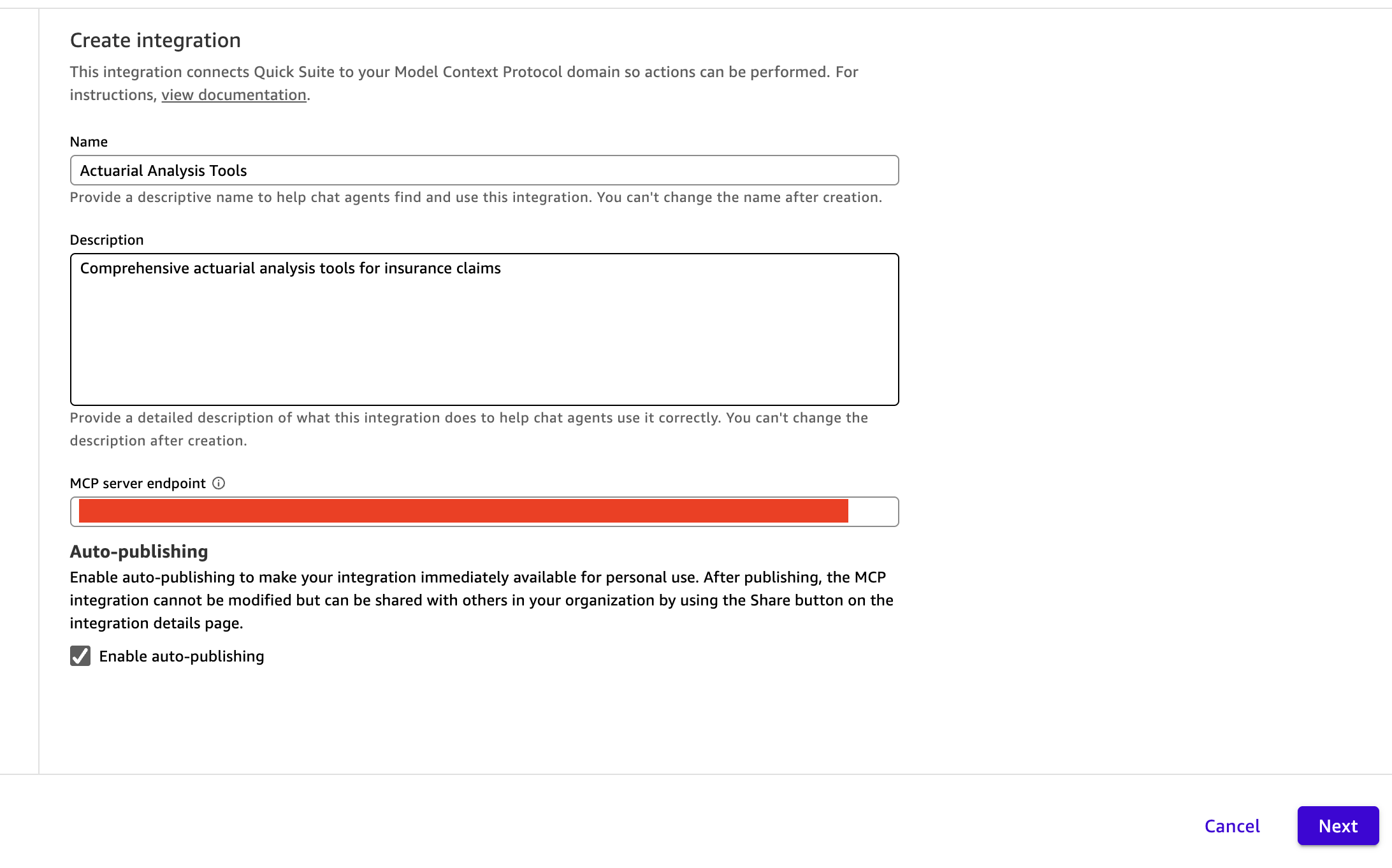
Step 2: Configure MCP Server
Fill in the MCP configuration:
- Name: Actuarial Analysis Tools
- Description: Comprehensive actuarial analysis tools for insurance claims
- MCP Server Endpoint: Paste your
GatewayUrlfrom CDK deployment outputs - Choose Next
Step 3: Configure Authentication
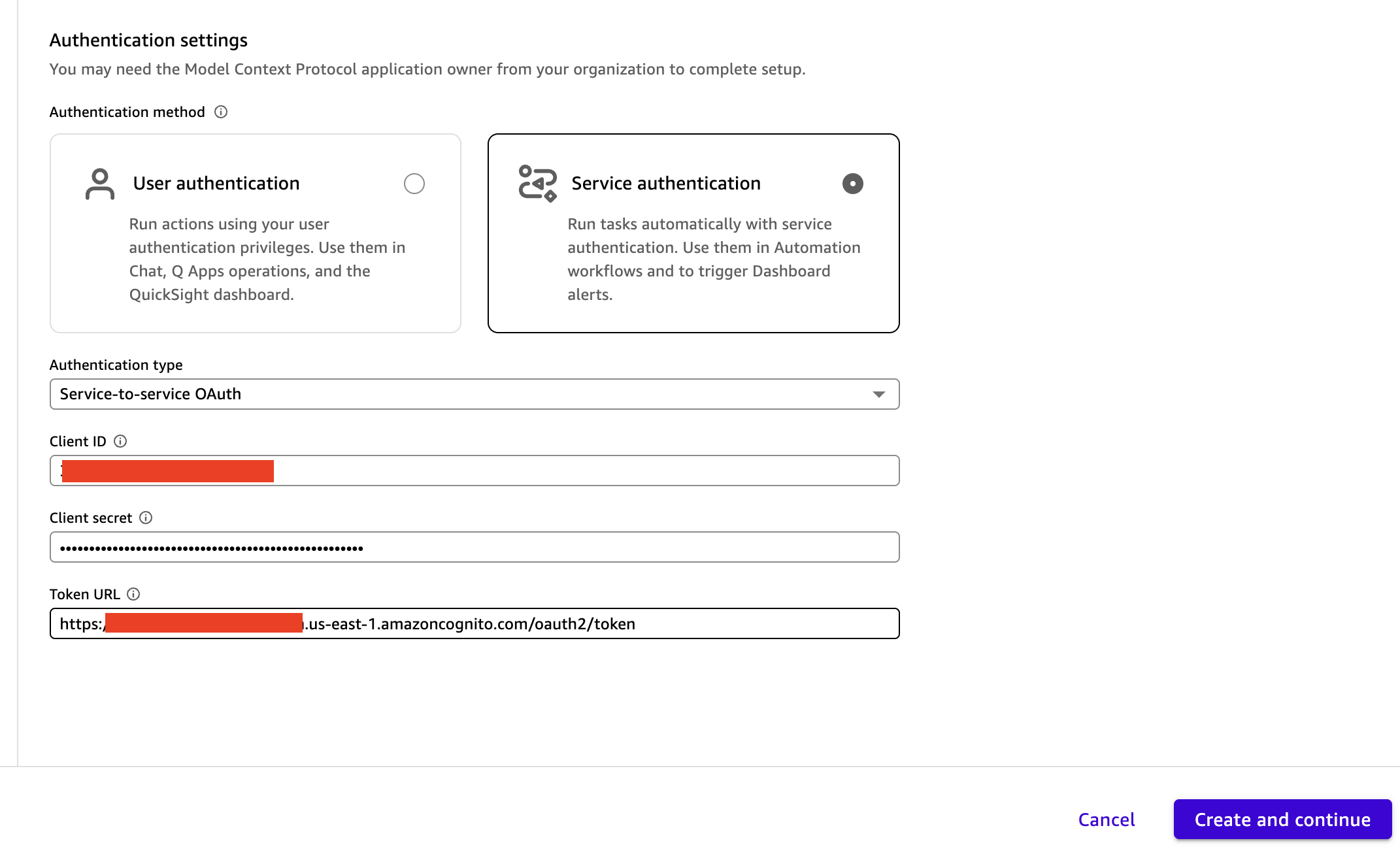
Set up the OAuth client credentials the gateway expects:
- For Authentication, select Service Authentication
- Keep Service-to-service OAuth within the Authentication type field
-
Fill in the authentication values from your CDK deployment outputs:
-
Client ID → Paste your
ClientId(ensure no leading/trailing spaces) - Client Secret → Paste your
ClientSecret(ensure no leading/trailing spaces) - Token URL → Paste your
TokenEndpoint
Step 4: Complete Setup
Finish the wizard:
- Choose Create and Continue
- Select Next
- Select Next
Quick Flows Integration
Create a flow that runs the tools in sequence:
-
Choose the Flows icon and choose + Create a new flow if no flows exist or Generate flow to create a new flow.
-
Quick Flows analyzes your conversation and generates a prompt to generate a Flow. Replace the generated prompt with the following prompt:
--- COPY THE TEXT BELOW FOR QUICK FLOWS ---
Flow Name: "Comprehensive Actuarial Claims Analysis & Risk Assessment Solution"
STEP 1: Analysis Request Input - Type: Input Step - Prompt: "Analyze auto claim"
STEP 2: Database Schema Discovery & Query Generation - Type: Action Step - Action: describe_table - Instructions: Call describe_table for claims table based on input from Step 1. Generate SQL query that fetches all columns using SELECT *. Apply appropriate filter for Business/Comm Auto line of business. Do not add LIMIT clause. Return SQL query string only.
STEP 3: Data Extraction & Session Management - Type: Action Step - Action: run_query - Input: SQL query from Step 2 - Instructions: Execute query using run_query. Return session_id prominently. NO recommendations or analysis suggestions.
STEP 4: Loss Development Analysis - Type: Action Step - Action: build_loss_triangles - Input: session_id from Step 3 - Instructions: Build complete loss development triangles by accident year and development period. Generate all four triangles (incurred, paid, reserve, count) with development factors, ultimate loss projections, and IBNR estimates. Display each triangle as a formatted table with accident years as rows and development periods as columns. Apply gradient background color to table cells from low to high values using Yellow to Orange to Red color scale. Show development factors and confidence intervals.
STEP 5: Reserve Analysis & IBNR - Type: Action Step - Action: calculate_reserves - Input: session_id from Step 3 - Instructions: Calculate IBNR reserves using Chain Ladder and Bornhuetter-Ferguson methodologies. Generate ultimate loss projections with confidence intervals (75%, 90%, 95%). Perform reserve adequacy testing. Display results with waterfall chart for IBNR buildup by accident year, stacked bar chart comparing current reserves vs ultimate losses, line chart with confidence interval bands, gauge chart for reserve adequacy percentage with color zones.
STEP 6: Litigation Risk Analysis - Type: Action Step - Action: detect_litigation - Input: session_id from Step 3 - Instructions: Perform comprehensive litigation detection using NLP and pattern matching. Analyze all claim notes for litigation keywords and strong signals. Generate confidence scores and identify friction patterns. Display results with pie chart showing complete risk distribution, horizontal bar chart for top 20 high-risk claims with scores, line chart showing litigation rate trends over time.
STEP 7: Fraud Detection - Type: Action Step - Action: score_fraud_risk - Input: session_id from Step 3 - Instructions: Perform multi-factor fraud scoring using statistical analysis and pattern recognition. Analyze claim amounts, timing patterns, driver age, vehicle age, medical vs property ratios, and fraud keywords. Generate fraud probability scores with detailed risk factors. Display results with histogram showing fraud risk distribution, horizontal bar chart for top 50 suspicious claims with scores, formatted table with rankings and key red flags.
STEP 8: KPI Monitoring - Type: Action Step - Action: monitor_development - Input: session_id from Step 3 - Instructions: Monitor all claim development patterns and calculate comprehensive KPIs. Track loss ratios, frequency trends, severity trends, reserve adequacy, and performance benchmarks. Generate automated alerts for unusual patterns and threshold breaches. Display complete monitoring dashboard with multi-line trend charts, speedometer gauge charts for alert thresholds, stacked area chart for loss ratio trends, KPI summary cards in 2x3 grid.
--- END OF QUICK FLOWS PROMPT ---
Flows Creation Tip
When creating your Flow from natural language, Flows will deconstruct your prompt into individual steps. The quality of the generated flow depends on the clarity and specificity of your natural language prompt. You may need to refine your prompt or make manual adjustments to the flow to achieve your desired outcome.
Running Your Flow
The animation below shows a complete run.
-
Choose the Run mode button
-
Notice the interface has these parts:
- Left side: Shows flow step progress tracker (you may need to expand screen to full)
- Middle: Shows the flow steps with input and Start button
-
Right side: Chat interface for conversation
-
In the chat interface, type: "Analyze Auto claims"
Observing Flow Execution
As the flow runs, you can see:
Progress Tracking: The left side shows each step's status as it is executed and completed.
Chat Interaction: The right side allows you to:
- Ask follow-up questions or commands, such as "Summarize the fraud findings" or "Explain the litigation risk factors"
- Start new runs with different claim types or analysis parameters
Best Practices
These practices keep flow runs reliable:
- Use Specific Prompts: Reference previous steps with @step-name format
- Session Management: Always pass session_id between analysis steps
- Error Handling: Include validation and error checking in prompts
- Output Focus: Be specific about required outputs and formats
Troubleshooting
These are the most common deployment and runtime errors, with a fix for each.
CDK Bootstrap Error:
cdk bootstrap aws://ACCOUNT-ID/REGION
Permission Denied:
aws sts get-caller-identity # Verify credentials
Lambda Timeout:
- Check CloudWatch logs:
/aws/lambda/actuarial-tools - Increase timeout in
cdk/actuarial_stack.py
SQL Query Failed:
- Verify data source configuration
- Check query syntax
- Review IAM permissions
Cleanup
To remove every resource the stack created, run:
cdk destroy
Sample Data
The sample_data/claims.csv contains 10,000+ synthetic insurance claims with:
- Multiple lines of business (Auto, Property, Liability)
- Date range: 2020-2024
- Realistic claim amounts and patterns
Documentation
For more detail, see these pages:
- CDK Deployment Guide - Infrastructure deployment details
- Tool Definitions - API specifications
- AWS CDK Documentation
- Amazon Bedrock AgentCore
License
This library is licensed under the MIT-0 License. See the repository LICENSE for details.